
There's a lot to like in the Galaxy Z Fold 8 Ultra, and although Samsung didn't make too many changes this year, the bigger 5,000mAh silicon battery means the foldable lasts considerably longer than its predecessor.
Thankfully, there's an easy way to boost the battery life even more. Samsung offers performance profiles within One UI, and I switched over to the Light mode, netting me a decent uptick in battery life. So let's take a look at what the mode has to offer, and why you should consider using it.
Standard vs. Light profiles: Is there a difference?
By default, all Samsung phones run the Standard profile out of the box, but there's a Light mode that's designed to prioritize battery life and thermal efficiency. These performance profiles are located in the Device care section, and you can easily switch between the two as needed.
Unlike Energy Saver mode, the Light profile doesn't actually make a difference in regular daily use. You still get 120Hz refresh and similar levels of fluidity when navigating the UI or browsing. What is does instead is reduce the clock frequencies of the processor, so it isn't using as much power all the time. This is absolutely fine on a high-end foldable, as Qualcomm's latest-gen silicon has plenty of power to spare.
As I said, I didn't see any difference after switching to the Light profile, and the device continued to be lag-free even while multitasking. Notably, the profile is only active in regular use; if you launch a game, it uses Game Booster (which is another thing entirely), so you don't need to limit the hardware if you play games regularly.
There's a clear benefit to using the Light profile. I got close to an additional hour of usage (not SOT) over the course of a day, and it meant I didn't need to plug in the phone until the end of the day. It particularly makes a difference with outdoor use, as the profile does a good job balancing thermals.
How to enable the Light profile
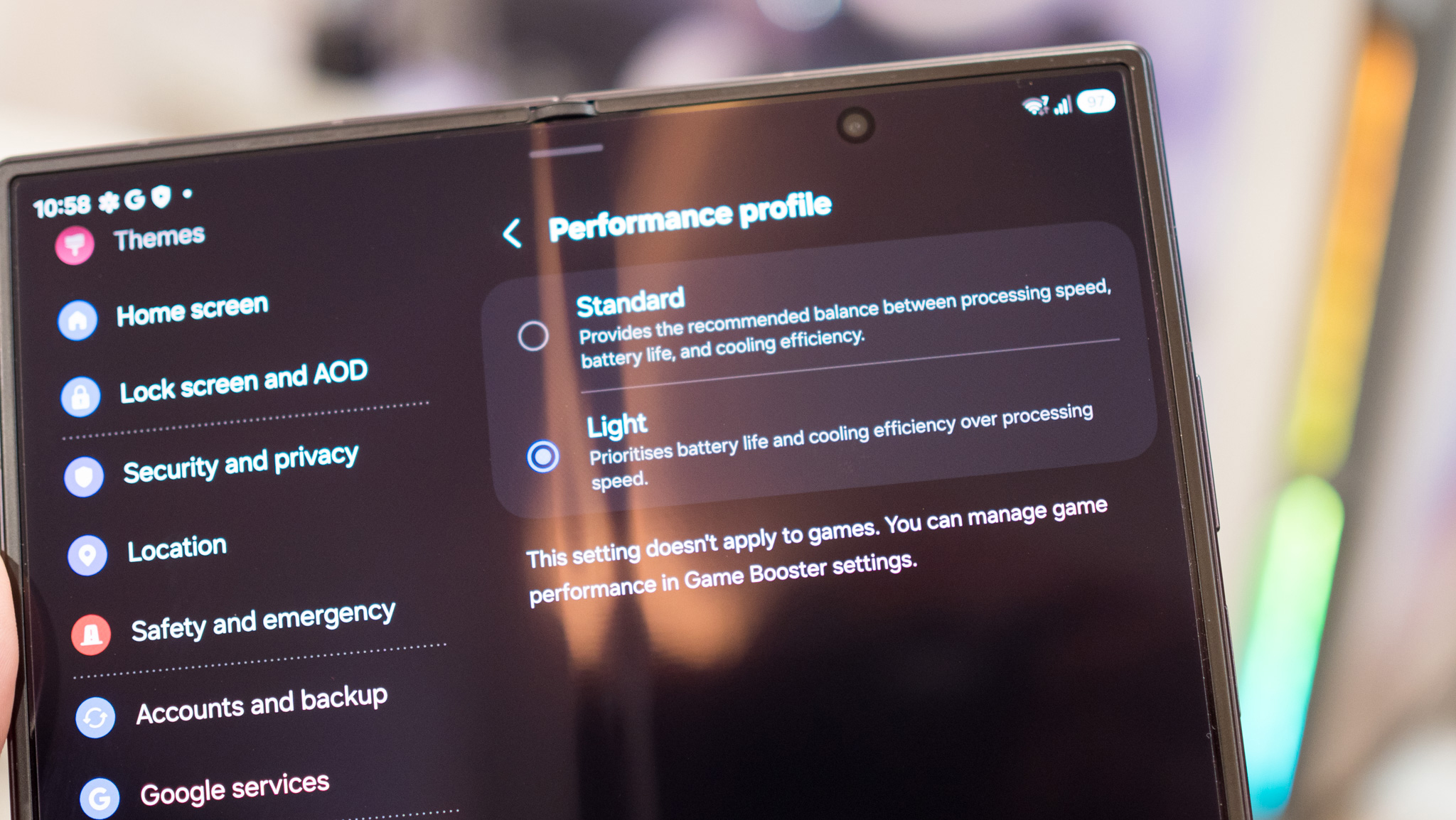
Switching between the Standard and Light modes is as easy as it gets. This is how to do it:
- Go to Settings.
- Navigate to Device care.
- Select Performance profile.
- Choose Light.
That's all there is to it. The best part about this is that the feature is available on all Samsung devices, so if you're using an older Galaxy phone and need it to last a little longer, you should give it a try.
from Latest from Android Central https://ift.tt/AmXz98w
via IFTTT

Aucun commentaire:
Enregistrer un commentaire