LightBlog

mercredi 2 février 2022

Here's how to cancel or delete your Spotify (but save your playlists)

Whether you're here because of the recent Spotify controversy, because another competing music streaming service has drawn your eye, or simply because you're on a tight budget this month, figuring out how to cancel Spotify can be tricky. Cancelling a Spotify Premium account isn't too difficult, but deleting your Spotify account entirely requires some legwork. We'll walk you through the process, including how to transfer your Spotify playlists first.

How to cancel Spotify Premium

If all you want to do is stop paying for Spotify Premium and leave your account as a zombie that you can revive later, then cancelling Spotify is simple.

  1. Go to Spotify.com.
  2. Click the Profile drop-down menu next to your account icon. Then select Account.

  3. From the Account Overview page, select Available Plans. You'll see your current paid plan and the option to switch.

  4. Select Cancel Premium and confirm your choice on the following screen. You'll be switched to a free ad-driven account with your liked songs and playlists intact.

How to delete your Spotify account

If you try to delete your Spotify account while it's still a Premium account, Spotify forces you to contact customer support first. If you want to go that route, you can send them a message at that link. But if you've cancelled your paid account first, it becomes much easier. You can permanently close it in just a couple of minutes, without any Spotify input required..

  1. From Spotify.com, click the Support tab.
  2. Go to Account Settings > Closing your account.
  3. Under Don't have Premium?, select the close your account link. Here is the direct link if you prefer. (Warning: If you still have a premium account, it'll redirect you to the "contact customer support" page.)
  4. If you have a free account, you should be taken to a Sure you need to close? page.

  5. Spotify will confirm that you are deleting the correct account and how many playlists it will delete.

  6. Keep hitting Continue until Spotify sends you a final confirmation email. Go to your inbox and click Close my account.

  7. You'll be taken to a final confirmation page confirming your account has been deleted. You'll then have to wait 14 days if you want to create a new Spotify account using the same email.

How to save and transfer your Spotify playlists

Before you delete your Spotify for good, make sure you don't lose all of the playlists you've built up over the years.

All of the best music streaming services make it a real challenge to transfer your liked songs and playlists to another service, because that makes it more likely you'll keep paying them monthly out of laziness. Officially, you'll have to open your old and new services side by side, "like" each song, and manually add songs to playlists.

Unofficially, you'll find a few playlist converter apps that read your Spotify data and convert it to work with another music app's API. Keep in mind that many of these apps are "free" but charge you if you plan to transfer more than 100 or 1,000 songs, depending on the service.

Soundiiz can transfer songs, playlists, albums, and artists to and from nearly all major music apps (except Amazon Music). You're stuck at just 200 songs for the free version, but the paid version can sync your playlists automatically across as many services as you want, brings across "generated" playlists, and exports your list of songs as a text file if you need it.

Transfer and sync

Soundiiz

Free or $4.50/mo. on Google Play Store

Keep your library up-to-date

Whether you want to use it once for a transfer or consistently across all the music services you subscribe to, Soundiiz will hopefully make your swap simple.

Another option is Tune My Music, an online browser tool with dedicated "Convert" links for each popular transfer, including Spotify to Amazon Music, Apple Music, YouTube Music, Deezer, and Tidal. The free version transfers up to 500 songs, while the premium version offers the same synced playlist options as Soundiiz. This option works better if you prefer a browser-based method over an app.

More songs for free

Tune My Music

Free or $4.50/mo. at Tune My Music

Supports all the major streaming apps

Say goodbye to Spotify and get all your data transferred over to your new streaming service of choice. If you have a small library of songs, TMM will let you do it for free.

Keep in mind that whichever you choose, you'll have to give the transfer app your login credentials for both Spotify and the new service. If that makes you uncomfortable, you can typically revoke the site's access after the transfer is done and then change your account's password in your password manager.


from Android Central - Android Forums, News, Reviews, Help and Android Wallpapers https://ift.tt/vYyWUaCPc
via IFTTT

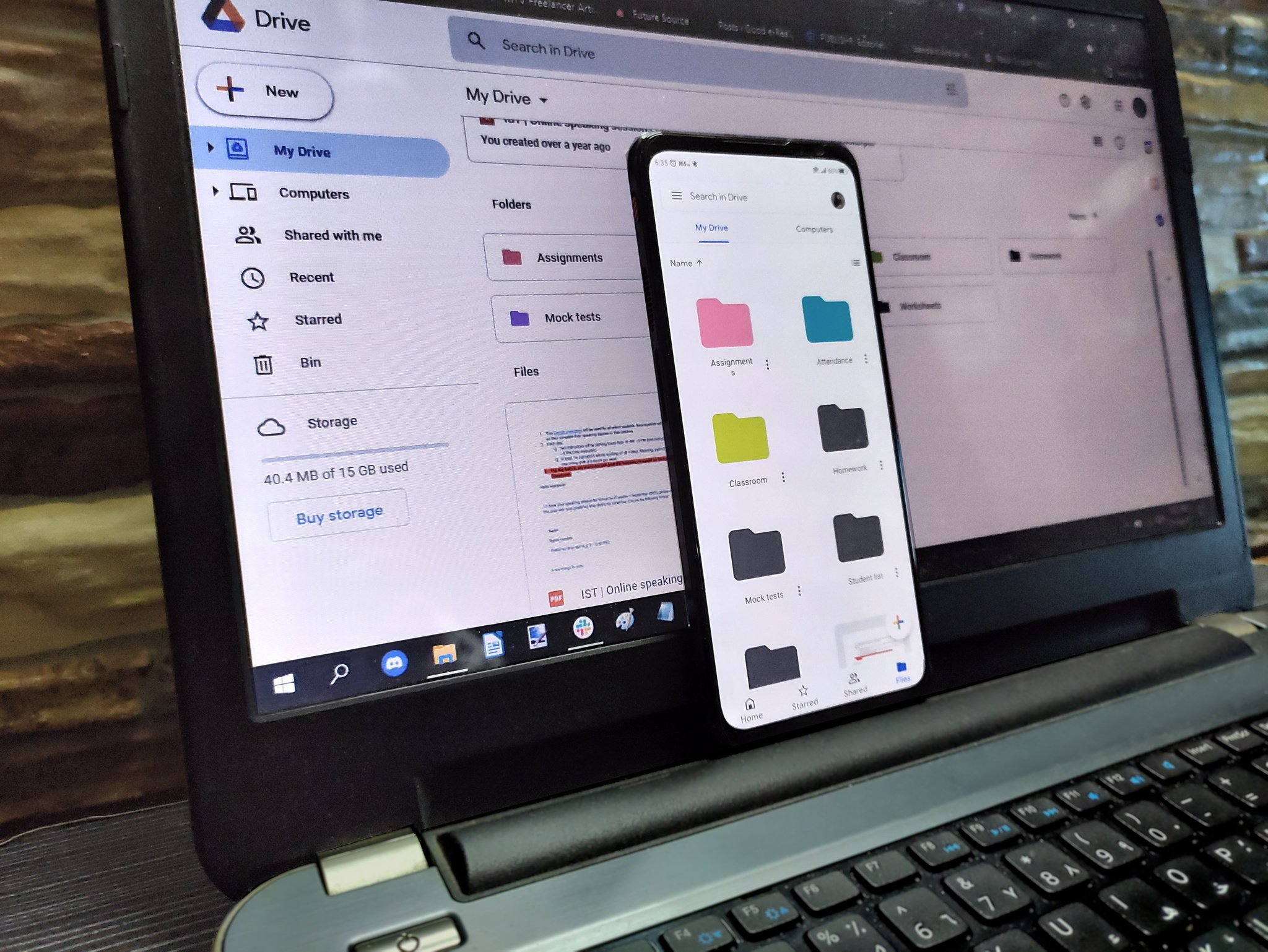
Top 6 Google Drive tips and tricks

Unlock Google Drive's full usability and potential with these tips.

Anyone and everyone who uses an Android phone or a computer know of Google Drive's existence. It's Google's very own cloud storage system, and it's one of the best cloud storage services out there. If you have a Google account, you get 15GB of free space in Google Drive right off the bat.

If you need more space, you can always bump up the 15GB allotment by upgrading to the paid Google One subscription. Whether you're using the paid plan or the free one, you should learn to take advantage of Google Drive's capabilities. Here are some of the best Google Drive tips and tricks.

Tip 1: Find shared files easier

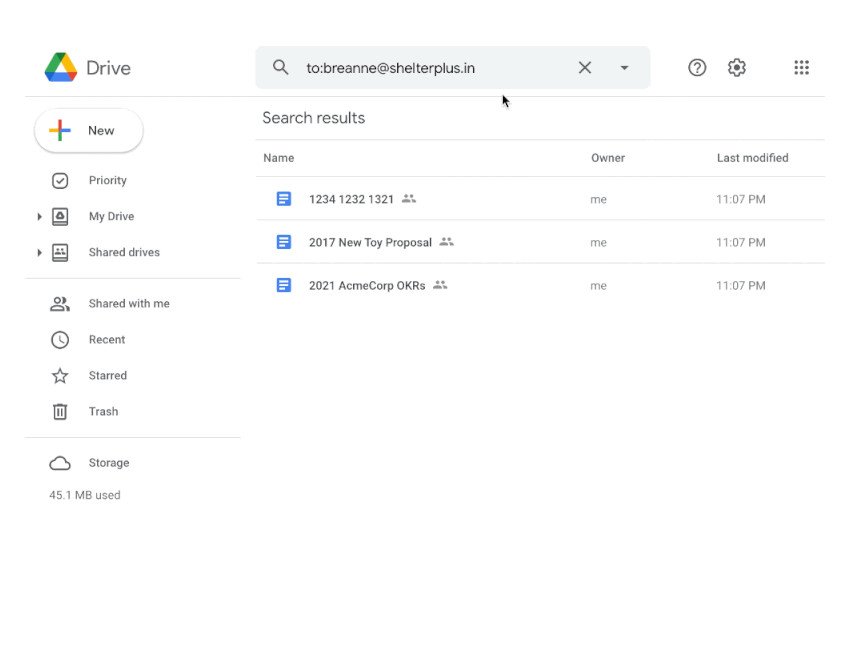
There are many benefits of having all your data in the cloud, especially if you automatically back up data to Google Drive. The drawback is that you may have trouble finding a specific file shared with you or one you shared with someone else. You can save yourself the headache of rummaging through all your files by using operators to find files easier in Drive.

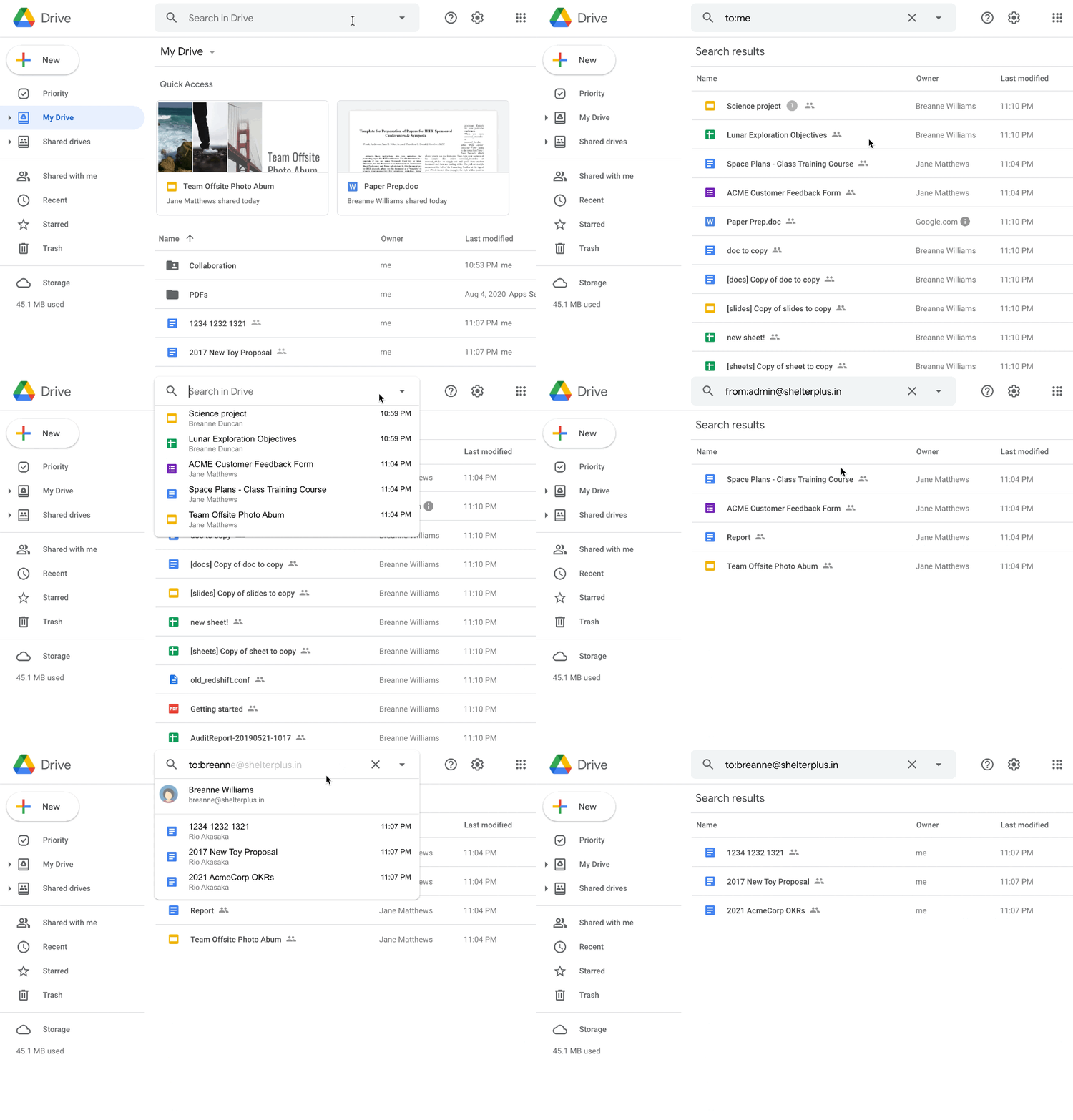
You can do this on your Android phone or your computer. For Android phones, first open the Google Drive app. Next, locate the search bar in the app. To find files you shared with others, use the to: operator. To find files someone shared with you, use the from: operator. Type the operator and the email address that shared the file with you, or you shared to, in the search bar and press enter. For yourself, use me instead of an email ID.

The same operators can be used on the desktop version of Google Drive. Open Google Drive on your computer's browser. Enter the same operator and keywords as above into the search bar to find what you are looking for.

Google To From Sharedby

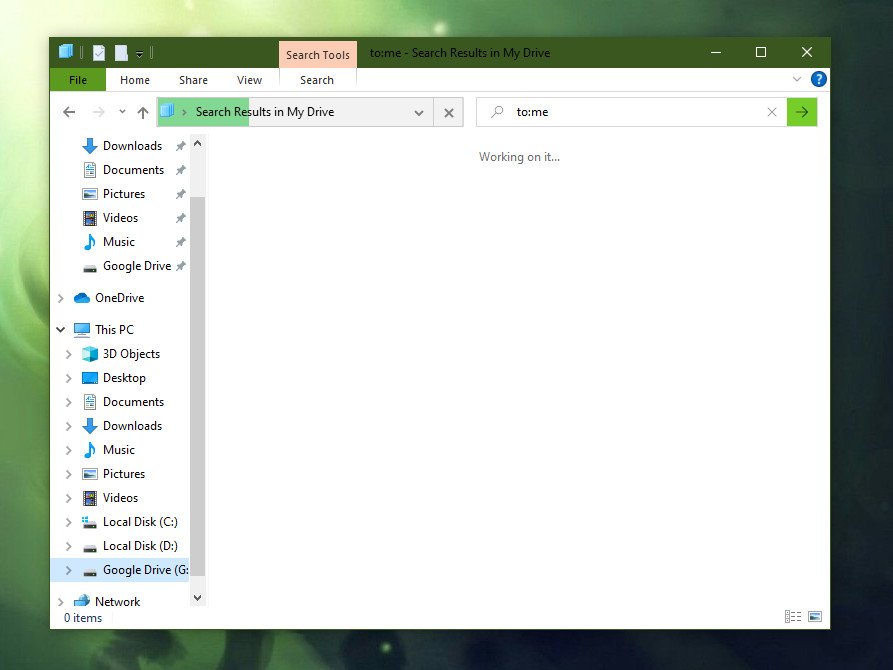
If you have the Google Drive desktop app, open the folder and enter the same operator and keywords into the search bar to find what you are looking for.

Tip 2: Create shortcuts

Another way to quickly find a specific file or folder is by creating shortcuts. This can be done right from the comfort of your Android phone by using the Google Drive app or through the desktop. Likewise, you can create shortcuts for the app or even your computer from the app.

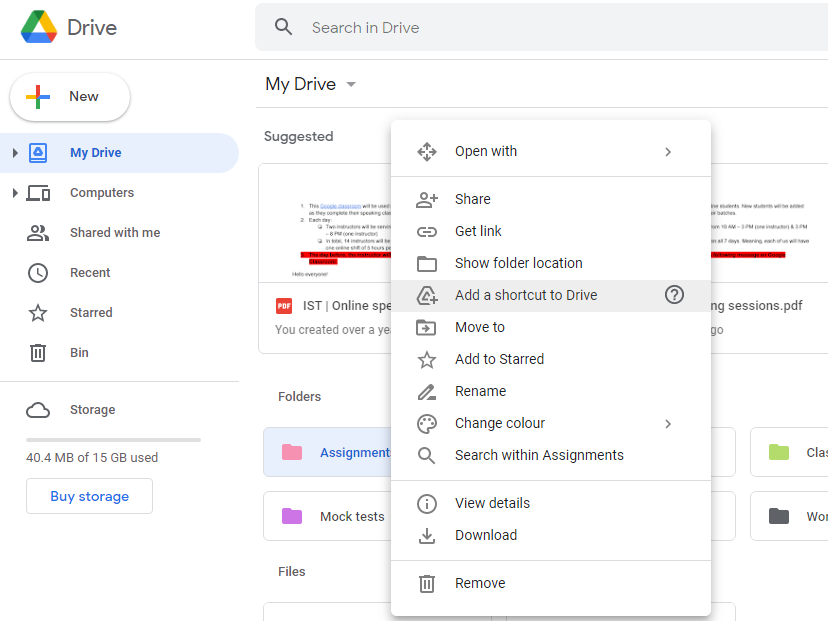
Open Google Drive on your laptop or computer's internet browser. Right-click on the file you want to create a shortcut for. Click on Add a shortcut to Drive.

On your phone, open the Google Drive app. Find the file or folder that you want to create a shortcut for. Tap the three dots on the file or folder. Tap on Add shortcut to Drive.

Choose the location of your shortcut. Tap Add.

You can set up shortcuts for four locations from your phone. These are My Drive, Computers, Shared with me, and Starred.

Tip 3: Change folder colors

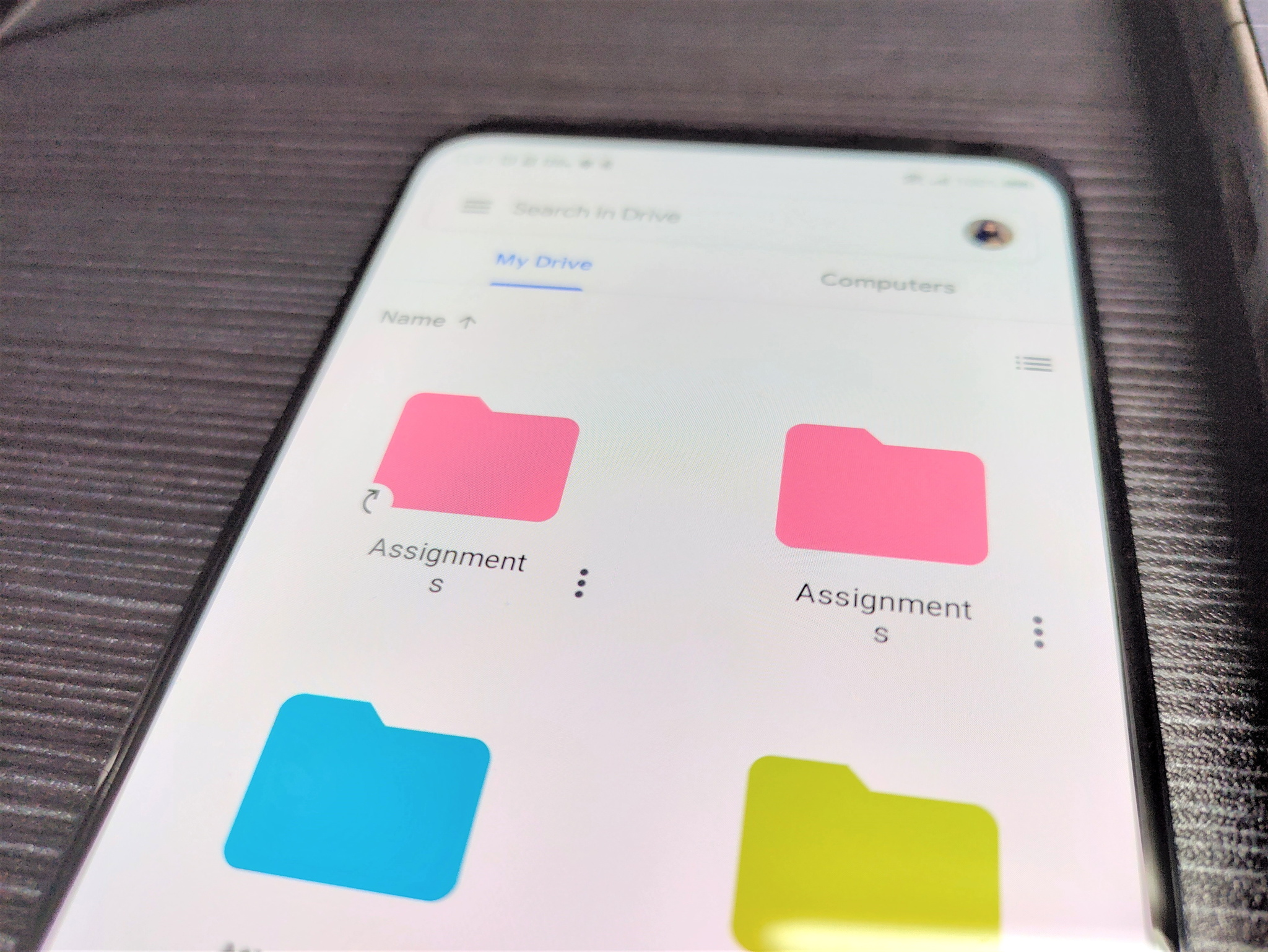
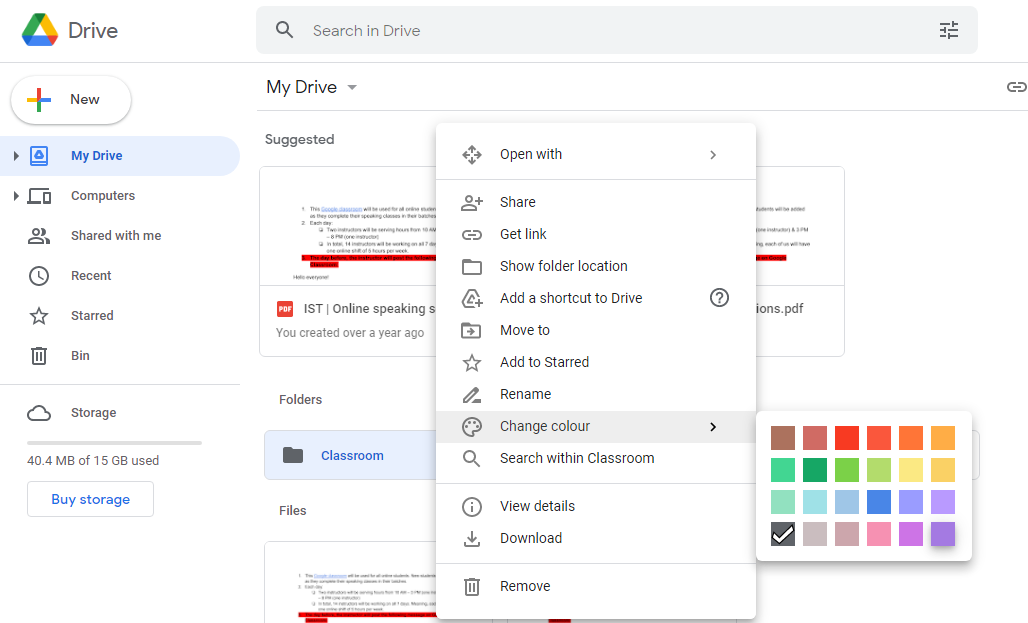
Arrange all your Google Drive folders neatly by changing their colors. You can use personal coordination methods, for example, hues of green for work-related folders or shades of pink for personal ones. Here's how you can change folder colors in the cloud storage platform.

For PC users, open Google Drive on your desktop browser. Right-click on a folder. Select Change color from the drop-down menu. Choose any color.

To change folder colors in Drive on Android, open the Google Drive app. Tap on Files and then choose a folder. Press and hold on the folder and tap on the three dots in the top right corner. Tap on Change color and pick a shade.

Tip 4: View file activity

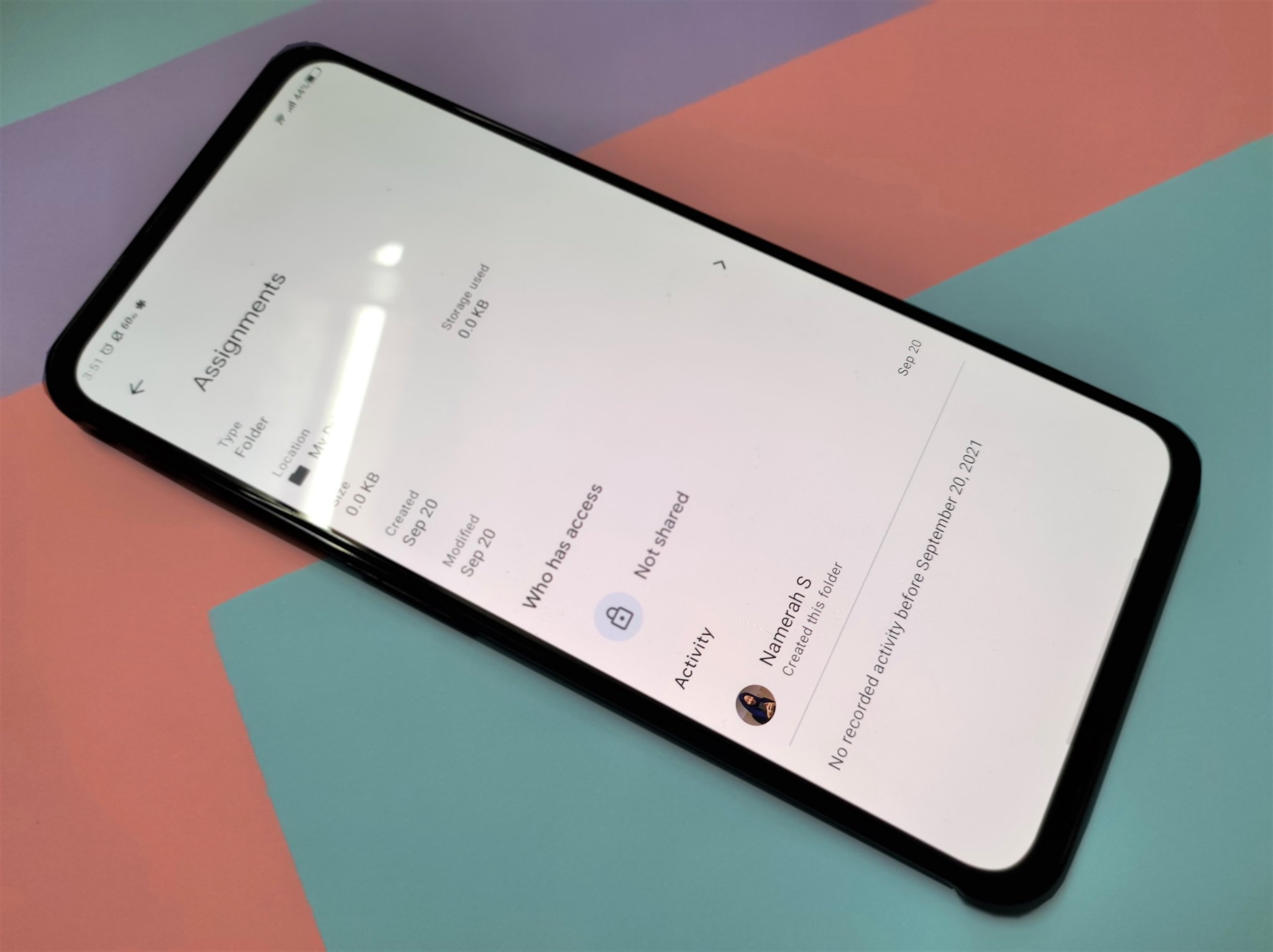
Google has made it very easy to collaborate on projects with your colleagues or mates. For example, you can view file activity in Google Drive that helps you share comments or know who edited the file. If you're doing this on your computer, take the following steps.

Open Google Drive on your desktop browser. Look for the circular button with i inside and click on it. Click on Activity.

Google Drive Desktop View File Activity

On your Android phone, open the Google Drive app. Pick a file and tap on the three dots on it. Tap on Details & activity. Scroll down to the Activity section.

Tip 5: Reorder your files

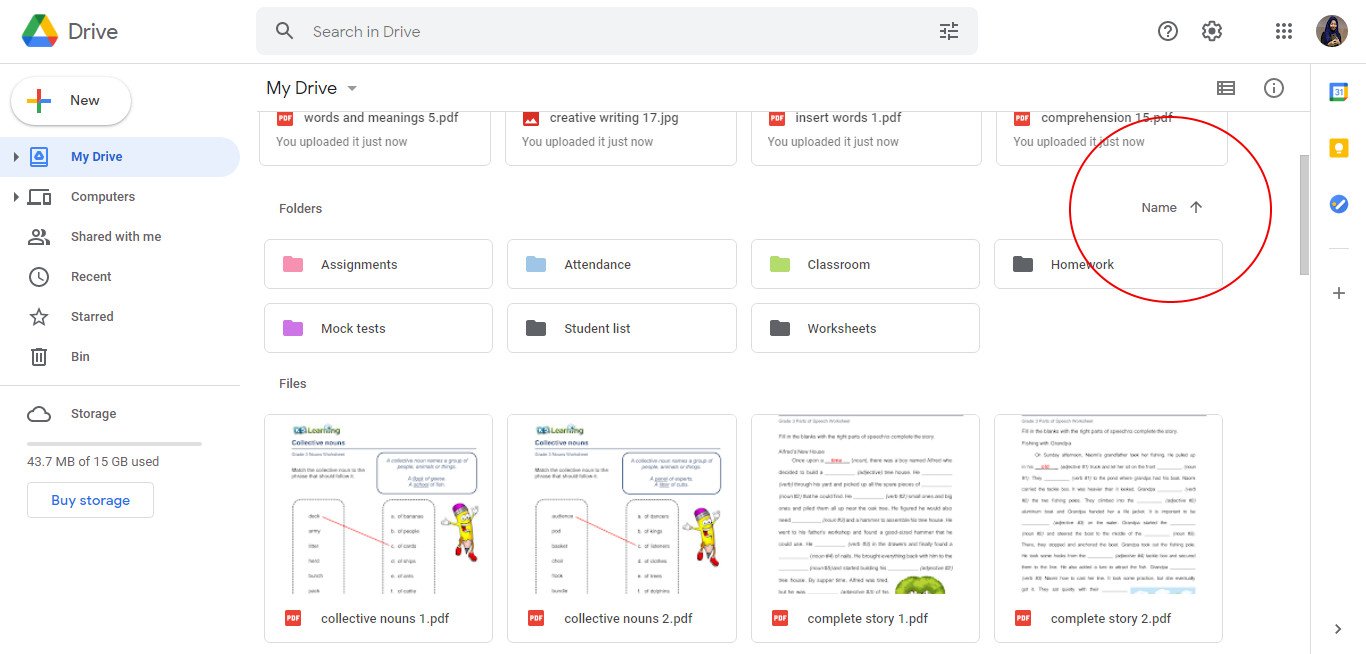
It's convenient to have all your data organized within Google Drive. You don't have to drag and rearrange every item, simply reorder everything in bulk. You can reorder your files and sort them by name, last modified, and last opened.

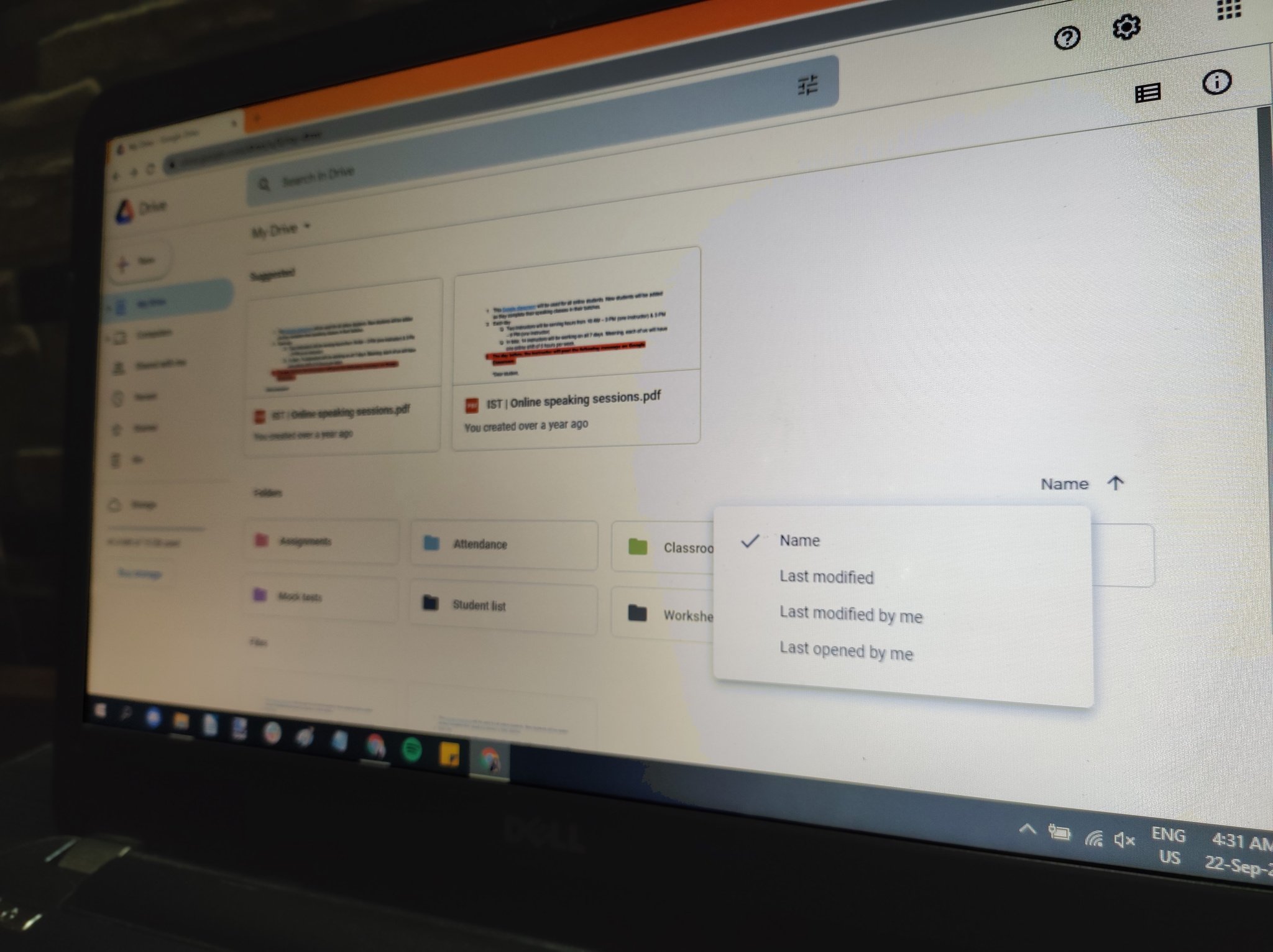
If you're a desktop user, open Google Drive on the browser. Look for the current sorting criteria and click on it. Change the sorter to reorder your files. Click on the arrow the change the arrangement from ascending to descending order.

Phone users can achieve the same result as well. Open the Google Drive app. Tap on Files. Find the current sorter in the upper right corner and tap it. Choose sorting criteria.

The reorder changes are saved to your Google Drive across platforms. So if you sort your files by one criterion on desktop or your phone, it will appear on other devices.

Tip 6: Block spam

Spam is undoubtedly one of the most common problems plaguing us since the inception of the internet. Unfortunately, bots and other denizens of the interweb figured out how to send us spam in Google Drive. To counter this annoying problem, here's how you can block spam in Google Drive.

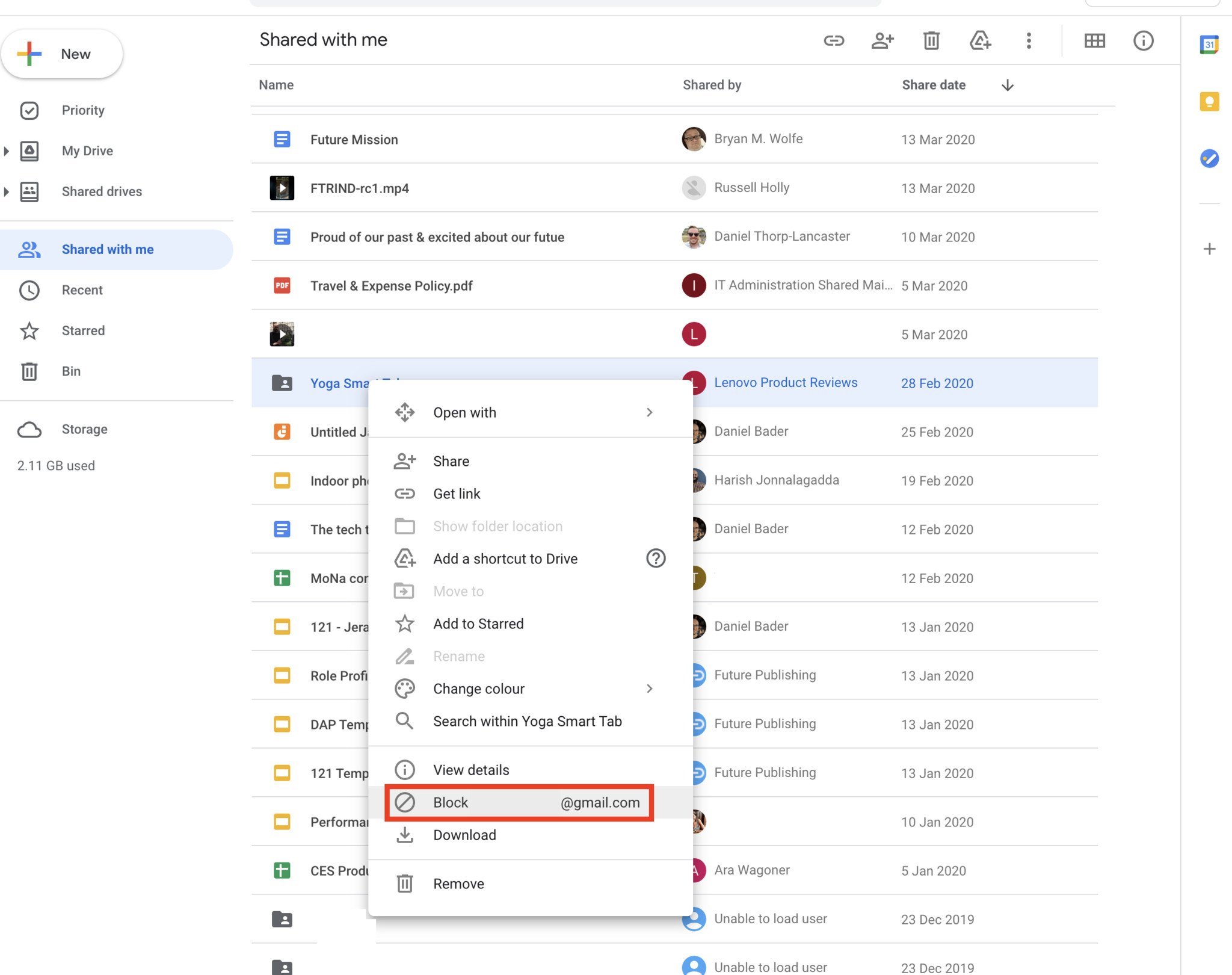
Desktop users need to go to drive.google.com. Next, right-click on the file that you want to block. Select Block from the drop-down menu. Finally, click Block once again, and you're all set.

You can achieve the same results on your Android phone. Start by opening the Google Drive app. Press and hold on the file you want to block. Tap on Block user@gmail.com (the spam sender's email address) and then tap on Block once more to confirm.

If you accidentally block the wrong person, it's easy to rectify your mistake. You can unblock any user from the web or your Android phone by visiting the People and sharing section of your Google account settings.


from Android Central - Android Forums, News, Reviews, Help and Android Wallpapers https://ift.tt/ePlqm39kV
via IFTTT

Realme's 9 Pro series budget phones will have a color-changing design

The Realme 9 Pro series phones will be the first to launch in Europe with a color-changing back.

What you need to know

  • Realme has "unveiled" the design of its upcoming 9 Pro series phones.
  • Both Realme 9 Pro series phones will feature a color-changing back.
  • The phones' "Light Shift Design" is inspired by photochromism and organic photochromic materials.

Realme is soon expected to unveil two new additions to its "Number Series" of budget phones. Ahead of their formal unveiling later this month, Realme has detailed the new "Light Shift Design" of the upcoming Realme 9 Pro series.

The Sunrise Blue variant of the two phones will have a color-changing back cover that apparently "transitions from blue to red in five seconds under sunlight or ultraviolet light." It fades back into blue when the phone is out of direct light.

Realme says the new "Light Shift Design" is inspired by photochromism and organic photochromic materials. To achieve the "chameleon" effect on the 9 Pro series phones, Realme had to use new techniques such as altering the molecular structure to enable the material to change colors and fade back again quickly.

Realme first created the pioneering dual-layer photochromic process and added an organic composite layer which not only guarantees the desired effect but also increases the colour rendering rate

The Realme 9 Pro series phones won't be the first to feature color-changing back panels. Vivo's V23 series phones, which were unveiled last month, also have a similar design.

While Realme hasn't confirmed a launch date for the 9 Pro series yet, it did reveal last month that the Realme 9 Pro+ will be powered by a MediaTek Dimensity 920 5G chipset. The Realme 9 Pro, on the other hand, is rumored to feature Qualcomm's Snapdragon 695. The same chipset also powers the Redmi Note 11 Pro 5G — one of Xiaomi's best budget Android phones.


from Android Central - Android Forums, News, Reviews, Help and Android Wallpapers https://ift.tt/uFgsjAlxX
via IFTTT

mardi 1 février 2022

Realme becomes second-largest phone brand in India, sets sights on Xiaomi

Realme now has 17% market share in India.

What you need to know

  • The latest Counterpoint data shows Realme moving up to second position in India's handset market.
  • Realme saw a year-on-year growth of 20% in Q4 2021, and now has a 17% market share in India.
  • Most of Realme's gains were in the entry-level segment with the C and Narzo series.

From the very beginning, Realme has been a sales juggernaut. The brand's focus on value and its innate ability to undercut Xiaomi in the budget segment allowed it to quickly gain ground in India, and it used that as the starting point to build a global empire that now stretches to over 30 countries.

Realme became the fastest brand to hit the 100 million sales milestone last year, and a surge in sales in Q4 2021 allowed the brand to overtake Samsung to become the second-largest phone brand in India. The latest figures from Counterpoint show that Realme has picked up a 17% market share in India in Q4 2021, closely edging out Samsung at 16%.

Xiaomi is still in a dominant position with 24% market share, and it doesn't look like that will change anytime soon. Xiaomi overtook Samsung to become India's leading phone manufacturer over four years ago, and it hasn't relinquished that position yet. But if there's any brand that can challenge Xiaomi for the summit, it is Realme. After all, both brands intensely vie in the same category, and in recent years Realme made tangible gains on the software front.

Realme India's CEO Madhav Sheth is pretty clear about what the brand's goals are for 2022:

Our growth over the past three years is a demonstration of the love that our users have for the brand. Ever since realme came into existence, all our efforts have been put into bringing leap-forward technologies to the users and providing them with the best of experiences.

We achieved some major milestones in 2021 and being the second-largest brand in Q4 2021 is the perfect way to end the year. From here, we are only looking at more growth and have our goals set for 2022. We want to be India's no. 1 smartphone brand this year, and I believe that the path we are on is the correct one.

Counterpoint notes that Realme witnessed a year-on-year sales increase of 20%, the largest of any brand in Q4 2021. Obviously, a majority of Realme's sales came from the budget segment with the likes of the new C series and Narzo launches, but the brand is starting to see momentum in the mid-range and high-end categories with the GT series. The GT Master Edition is a fantastic overall device, and it goes up against the best Android phones in its category.

Xiaomi launched the 11T Pro in India and is set to bring the Redmi Note 11 series to the region shortly, and we should be seeing what Realme has to offer in the coming weeks. The GT 2 series is already official in China, and it shouldn't be too long before it makes its way to India. Realme positioned itself as an alternative to Xiaomi in global markets as well, with the brand seeing decent momentum in the UK and other western markets.


from Android Central - Android Forums, News, Reviews, Help and Android Wallpapers https://ift.tt/3SIbxmyQB
via IFTTT

YouTube makes fullscreen videos more useful with redesigned UI

Do more without leaving the full-screen experience.

What you need to know

  • YouTube introduces a redesigned fullscreen video UI for its mobile app.
  • The UI enables various actions such as liking a video, adding to a playlist, or posting a comment.
  • The new UI should be rolling out to Android users now.

YouTube is making a long-overdue change to its fullscreen UI on its mobile app, enabling new options for users without having to minimize the video.

The change was spotted by 9to5Google and moves away from the pretty bare fullscreen experience to one that's a bit more dynamic. This includes options on the video to like, dislike, send, comment, or add a playlist. There's also a way to pull up related videos in the bottom right corner of the screen.

You'll also notice that the three-dot menu is replaced with a more prominent settings cog.

The new UI makes watching fullscreen videos a bit less cumbersome, allowing you to do plenty of what you'd typically do if you were watching from the portrait mode view.

It also makes better use of the new floating fullscreen comments UI that was introduced in 2021, making it easier to pull up the comments without leaving the fullscreen experience.

The new UI appears to be rolling out pretty widely on the best Android phones, so you can hop into the app and start really enjoying your videos in fullscreen. That said, it doesn't appear to be available just yet on iOS devices.

Crystal clear

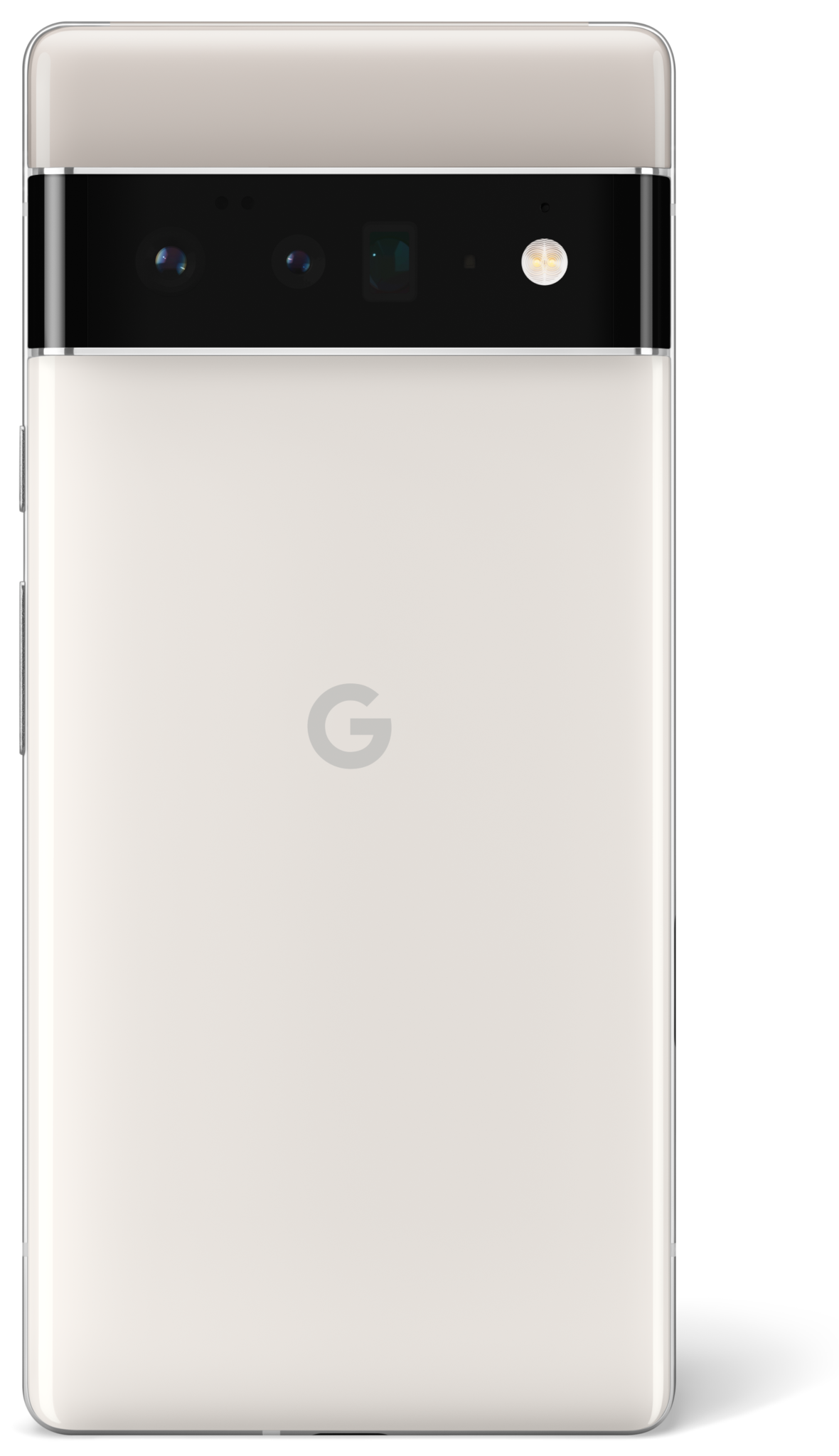
Google Pixel 6 Pro

$899 at Amazon $899 at Best Buy $899 at Google

Entertainment at your fingertips

The new Pixel 6 Pro is Google's best smartphone to date, thanks to its smooth QHD+ 120Hz display and powerful Tensor chip. This enables impressive visuals that make your gaming and streaming content much more enjoyable, especially on apps like Netflix or YouTube.


from Android Central - Android Forums, News, Reviews, Help and Android Wallpapers https://ift.tt/3do465Rlb
via IFTTT
Hextech Mayhem comes to mobile as a Netflix Games exclusive

One of two new additions to the growing Netflix Games library of mobile games.

What you need to know

  • Netflix Games is a growing library of mobile titles on Android and iOS exclusive to Netflix subscribers.
  • On Tuesday, it was announced that two more games are joining the Netflix Games lineup: Hextech Mayhem and Dungeon Dwarves.
  • Hextech Mayhem is set in the League of Legends universe from Riot Games, and comes to mobile after initially releasing on PC and Switch platforms.

Netflix is attempting to make its service indispensable to users that frequently game on their Android or iOS devices with a growing library of mobile titles under the Netflix Games umbrella. On Tuesday, the service added two new games—Hextech Mayhem and Dungeon Dwarves. Of the two, Hextech Mayhem is undoubtedly the higher-profile addition, and may indicate a growing commitment from Netflix Games to become a serious contender for mobile gamers' time.

Hextech Mayhem and Dungeon Dwarves are now available on both Android and iOS for free with a Netflix subscription (via the Verge). Dungeon Dwarves is an idle dungeon crawler. Hextech Mayhem, on the other hand, is part of Riot Games' extensive League of Legends universe, and is a rhythm controller featuring popular franchise characters Ziggs and Heimerdinger.

The game first released on PC through a variety of storefronts and on Nintendo Switch. Now, Hextech Mayhem is available to play on Android and iOS for the first time as another Netflix Games exclusive. As part of the service, Hextech Mayhem and Dungeon Dwarves are free and include no in-app purchases or ads. Hextech Mayhem may work its way among the best Android games for Netflix subscribers, thanks to its polished visuals and precise rhythm-based gameplay.

Hextech Mayhem Netflix Edition

Free at Google Play Store

Hextech Mayhem is a rhythm runner set in the League of Legends universe, and is finally arriving on mobile devices after its initial release on PC and Switch. Exclusive to Netflix Games, players with Netflix subscriptions can play Hextech Mayhem for free on Android and iOS.


from Android Central - Android Forums, News, Reviews, Help and Android Wallpapers https://ift.tt/wXhujaoMp
via IFTTT

Google reveals a new Gmail interface that's no longer a crowded mess

Making better use of side tabs.

What you need to know

  • Google is updating the desktop Gmail interface with a new, more straightforward UI.
  • Mail, chat, spaces, and meet will all have different sections instead of being crammed into one column.
  • The rollout will begin on February 8 as an optional change but will become mandatory by Q2 2022.

Any Gmail user who frequently checks their email on a laptop or desktop computer will know just how busy the interface can be. It seems Google agrees as a new interface will become available for all users starting February 8, 2022. At that time, you should see a pop-up on the bottom corner of your inbox to switch to the new UI.

This new UI separates the mail, chat, spaces, and meet sections into easy-to-find tabs on the left side of the inbox. In the current UI, these sections are crammed in the same column, which makes it a bit difficult to see any dense information. Google previously introduced the chat, spaces, and meet sections in a Gmail update last April.

The current Gmail UI versus the new Gmail UI.

By April 2022, Google will automatically switch users to this new UI. While you'll have the option to revert to the old UI for a little while, Google says that the old UI is going away as of Q2 2022, which usually means sometime in the early Summer.

Users who like having Google Chat on the right side of their inbox will likely be disappointed, as the new UI removes that functionality. Still, by cleaning up the Gmail UI, Google looks to be making the daily task of checking emails a bit more enjoyable.

Gmail is one of the best Android apps you can download on your phone and already separates these four sections via tabs located on the bottom of your phone's display.


from Android Central - Android Forums, News, Reviews, Help and Android Wallpapers https://ift.tt/bUa4WjIeR
via IFTTT