LightBlog

jeudi 31 décembre 2020

In 2021, prepaid carriers need to offer more besides the basics

It's time to step up and do better.
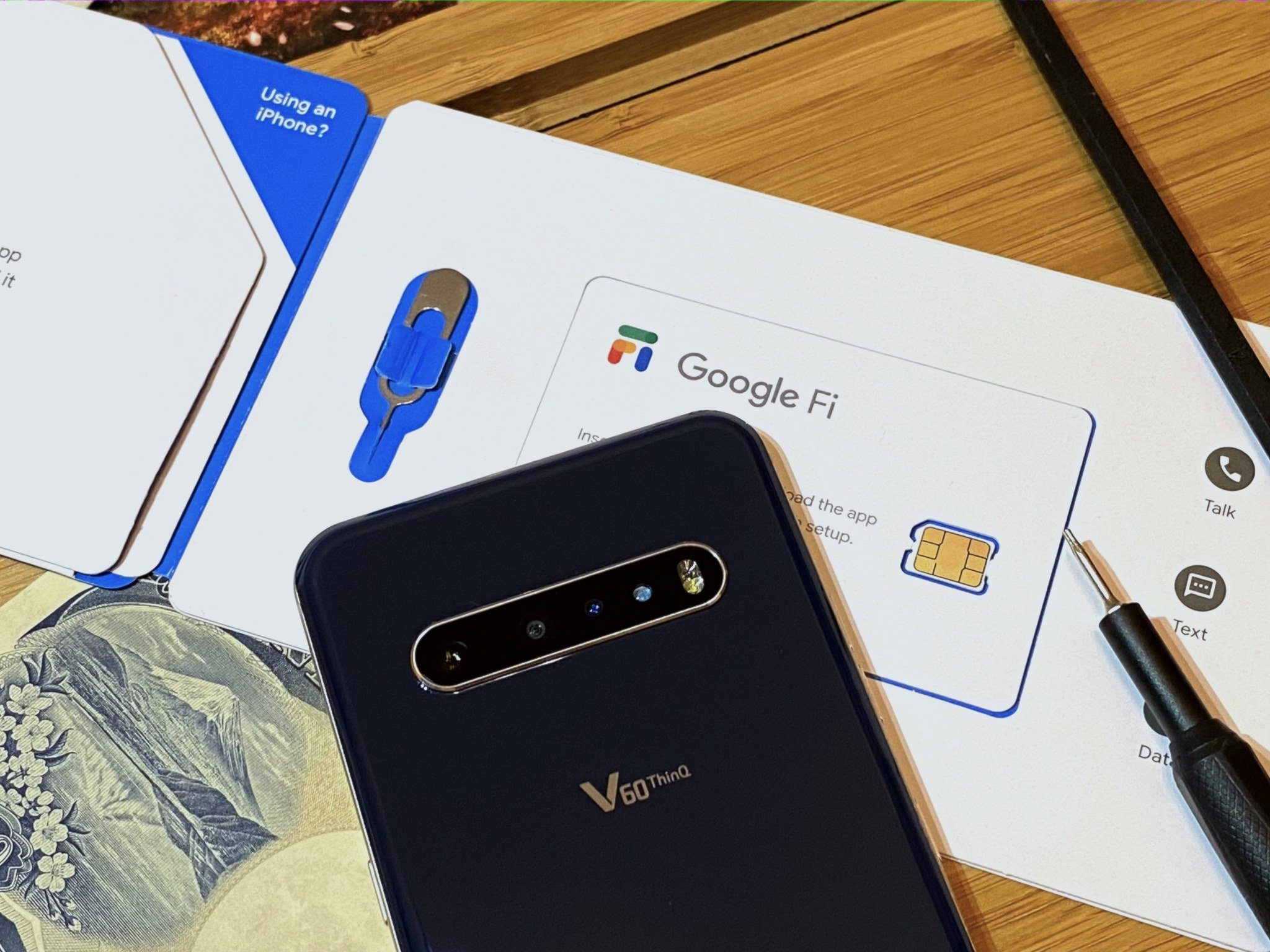
Talk, text, and data are the core features of a phone plan, but now that coverage has reached equilibrium for many people, prepaid carriers need to offer more than the basics. Carriers are beginning to differentiate themselves on the extras they pack in with their plans, such as subscriptions to streaming services or offering services like scam call blocking.

Some of the best values in wireless right now like Mint Mobile and Visible stick to the basics, but with more carriers offering similar levels of service for around the same price, these simple carriers are looking increasingly interchangeable. For a prepaid carrier to stand out in 2021, it's going to need to offer a more complete package to stand out. Each of the best MVNO carriers have something to help it stand out.

What are the basics in 2020?

Unlimited talk and text is a no brainer and with carriers like Ting offering it for $10 per month, it's hard to justify anything less.

I expect every carrier to come with a few basics. Unlimited talk and text is a no brainer and with carriers like Ting offering it for $10 per month, it's hard to justify anything less.

These days, people could get by on a small number of minutes and texts thanks to these activities taking place more and more on a data connection. For example, any message you send through a messenger like WhatsApp, Telegram, Line, Facebook Messenger, or Discord uses data to send the message. Same with calls made through these services.

There's no benefit to frustrating customers by asking them to count texts or minutes every month. There are still some carriers that offer service with a limited number of texts or minutes, but they only serve to show how bad of a value they are.

Finally, every plan carrier should offer fast enough speeds to use a smartphone without issue. Some carriers like Cricket and US Mobile put a speed cap on some of their plans. US Mobile's 5 Mbps speed cap on its base unlimited plan feels quite old fashioned. If you're unaffected by the speed cap, you probably didn't need unlimited data in the first place. Comparatively, US Mobile's rates are still very good even when you add $5 for data at modern speeds. I struggle to find a positive for customers in a 5 Mbps, uncapped data plan.

Get more from your plan

Mint Mobile LTE performance

Unlimited 2G data is one of the nicest things to normalize in the last couple of years. That is, once you've used all of your data, your connection still works at a speed that can send basic messages and emails. Almost all plans labeled as unlimited come with some sort of cap regardless of the carrier, though most of the time it's well above the threshold that would affect most people. Overages are a major hassle and if you're trying to save money on a phone plan, having a surprise charge on your bill can be a real drag.

5G shouldn't be a premium feature, especially when you've already paid for a compatible phone.

Another thing all prepaid carriers should be jumping on is 5G at no extra cost, especially sub-6 5G. Most carriers are on board with this, including Visible and Metro by T-Mobile, but some AT&T options do not. Notably, AT&T-owned brand Cricket only offers 5G on one of its phone plans. Arguably, 5G doesn't matter much with Cricket's slow data speeds on all but its top plan, but that also shuts customers out of potential coverage improvements with 5G. 5G shouldn't be a premium feature, especially when you've already paid for a compatible phone.

Another consideration is hotspot data. With people relying on tablets and Chromebooks to get work done, it makes sense to let customers use their mobile data any way they want. A lot of carriers offer hotspot data in either a lower speed simply shared with the mobile data pool, so it's a much smaller issue than it once was. This makes it very hard to recommend a carrier with no hotspot capability at all.
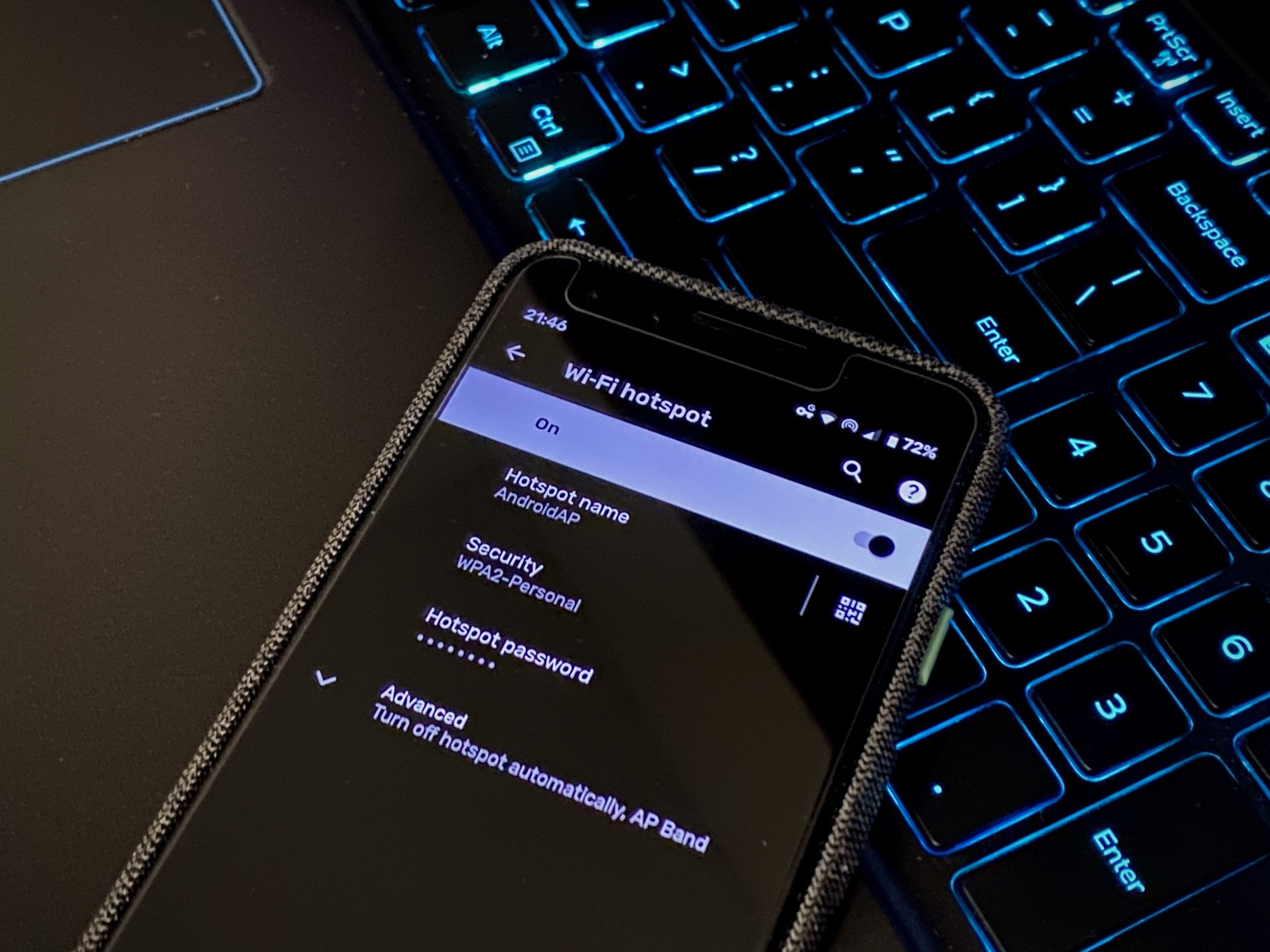
Mobile hotspot support on the Pixel 3 with Google Fi

Finally, many people want to be able to use their phones internationally. Boost Mobile and Google Fi have made international service some of their biggest selling points. It's a nice way to stand out and if I'm asked to recommend a carrier for someone that travels out of the country a lot, there's no better choice than Google Fi even with its higher price than competitors. If you need to go to Mexico, Boost Mobile has some of the best rates on data in Mexico.

Subscriptions and software extras

So far, all of these features have been fairly standard and most carriers will offer them as upgrades or add ons if they're not included with the base plan. One aspect of phone plans that has been growing rapidly is the inclusion of extra services that you would typically pay for separately. While this is surely aimed at increasing your reliance on the brand and making it slightly more inconvenient to switch carriers, many people can score some solid deals on services they use.

One of the most interesting examples is US Mobile. While US Mobile is mostly known for simple plans that can be customized, it has started offering unlimited family plans with up to four lines. If you have at least three lines on your plan, you get to choose one perk which includes most of the major options for music or video streaming, as well as access to online gaming services like PlayStation Plus and Xbox Live. Most of these subscriptions cost around $10 per month.
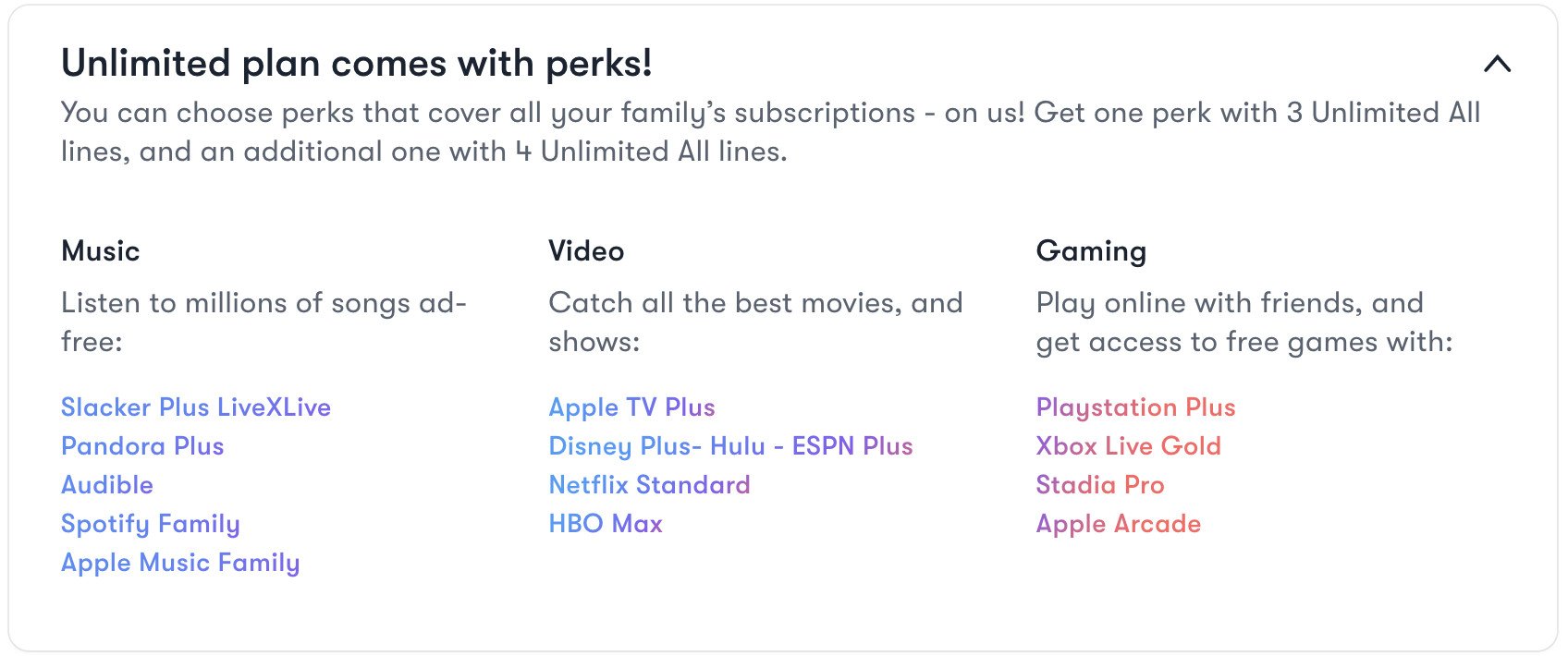
Do you already pay for any of these?

It's not as if US Mobile's plans are any more expensive than competitors either. If you need four lines of unlimited data and typically pay for one of the services US Mobile offers, it's a solid value. If you're fine dropping high-speed data and hotspot from some of the lines, it's a great value. Grandma's phone, for example, is probably fine with the 5 Mbps speed cap.

Google Fi includes 100GB of Google One cloud backup. While this isn't a huge expense, it is a nice inclusion if you want to keep full-resolution photos backed up or just need quick access to large files across devices. Sometimes it's also nice for travelers to be able to factory reset their phones for a trip across the border knowing data can be restored later with an internet connection. It makes sense for a carrier with an international roaming focus.

Metro by T-Mobile also includes the same Google One package with its unlimited plans. Metro also adds an Amazon Prime membership to its larger plan which ticks a lot of boxes for streaming and shopping needs. Metro by T-Mobile also brings one of T-Mobile's great features down to the prepaid brand, Scam Shield. If you're getting a lot of scam calls on your phone, Scam Shield can work wonders.

Get the right fit
You can get every one of these extra features individually, and if you're clever, you can probably get it cheaper. There will always be a need for a basic carrier with talk, text, and data for a reasonable price and there's nothing stopping a carrier from offering this option. The problem is that for most people, a prepaid carrier can be drawn from a hat and there will be little difference in the quality of service. To differentiate themselves, they need to offer more of the complete package that people have come to expect.

Prepaid carriers aren't just a budget option anymore for those with low credit scores. Prepaid carriers have become real options for even heavy users that need consistent coverage and fast speeds from their phones. The carriers that can significantly differentiate themselves from the major postpaid carriers or old-school phone card brands like Google Fi or US Mobile make a lot of sense for many people. It's also fairly easy to switch from one of the major carriers and you can even bring your phone and number in many cases.

Still, I'm glad there are so many options available and if you're willing to put in some research, you can find the perfect fit for you. For me, I just want a ton of high-speed data and coverage that's good enough to forget about.


from Android Central - Android Forums, News, Reviews, Help and Android Wallpapers https://ift.tt/3o2IPxN
via IFTTT


mercredi 30 décembre 2020

How to watch the Justin Bieber New Year's Eve concert live from anywhere

Justin Bieber is returning to the stage for his first live show since 2017 with a New Year's Eve celebration that fans around the world can attend virtually. Presented by T-Mobile, "New Year's Eve Live with Justin Bieber" will see the mega-star performing tracks from his latest album, Changes, including recent single "Holy" featuring Chance the Rapper. There might even be a few surprises in store for the fans watching live.

As virtual concerts get bigger and better, that happens to come at a price for viewers. While this is a ticketed event, there is a way you can watch for free if you're a T-Mobile customer. The company is giving all of its customers free access to the show through the T-Mobile Tuesdays app. For those who don't subscribe to T-Mobile, you can purchase a ticket now at www.JustinBieberNYE.com for $25 USD.

'T-Mobile Presents New Year's Eve Live with Justin Bieber': When and where

"T-Mobile Presents New Year's Eve Live with Justin Bieber" happens live this Thursday night, December 31 at 8 pm PT | 11 pm ET, though you will be able to log in and chat with fans beginning at 7:15 pm PT | 10:15 pm ET. If you can't watch live, the show will be re-aired only twice after the live performance: once at 7 pm JST | 9 pm AEDT | 5 am ET on January 1 and again at 8 pm GMT | 9 pm CET | 3 pm ET on January 1. You must have a ticket if you want to gain access to the show, so make sure to visit www.JustinBieberNYE.com or the T-Mobile Tuesdays app beforehand so you don't miss anything.

While the show is available worldwide, you could potentially run into a location restriction depending on the area where you live. If you're having trouble accessing the stream once it goes live, you should check out these cheap VPN services to try and unblock the show.

How to watch 'T-Mobile Presents New Year's Eve Live with Justin Bieber' live stream

This will truly be the easiest New Year's Eve party to get to ever. All you have to do is first buy your ticket and then head to VenewLive once the show is live to watch. There's even a chatroom where you can talk with fellow fans. Just use the entry code you received in your email after buying your ticket to unlock access. You'll be able to watch the show on practically any modern device, from tablets and smartphones to your computer and even some smart TVs by using the built-in web browser.

Justin's New Year's Eve concert is being streamed worldwide, though if you're still having trouble accessing the stream due to a location restriction, you may need to try out a VPN service to watch the show. Luckily, there are plenty of stellar options available to choose from.

ExpressVPN

See latest price at ExpressVPN

No matter where in the world you may be, a VPN is one of the easiest ways to watch Justin Bieber's virtual New Year's Eve concert live. Get in on this deal now!


from Android Central - Android Forums, News, Reviews, Help and Android Wallpapers https://ift.tt/3o2EpH8
via IFTTT
Can you access the Play Store on the Chromecast with Google TV

Best answer: Yes, your Chromecast with Google TV has access to the Play Store, so you can get your favorite streaming apps as long as they're supported on the platform.

Is the Play Store accessible on the Chromecast with Google TV?

When Google finally released a Chromecast with a remote and apps, it's quite exciting but does the Chromecast with Google TV support the Play Store like other Android TV boxes? While this new dongle still has the functionality of a traditional Chromecast that lets you send content to it from your phone when it has its own remote, it should allow you to browse apps without your phone — shouldn't it?

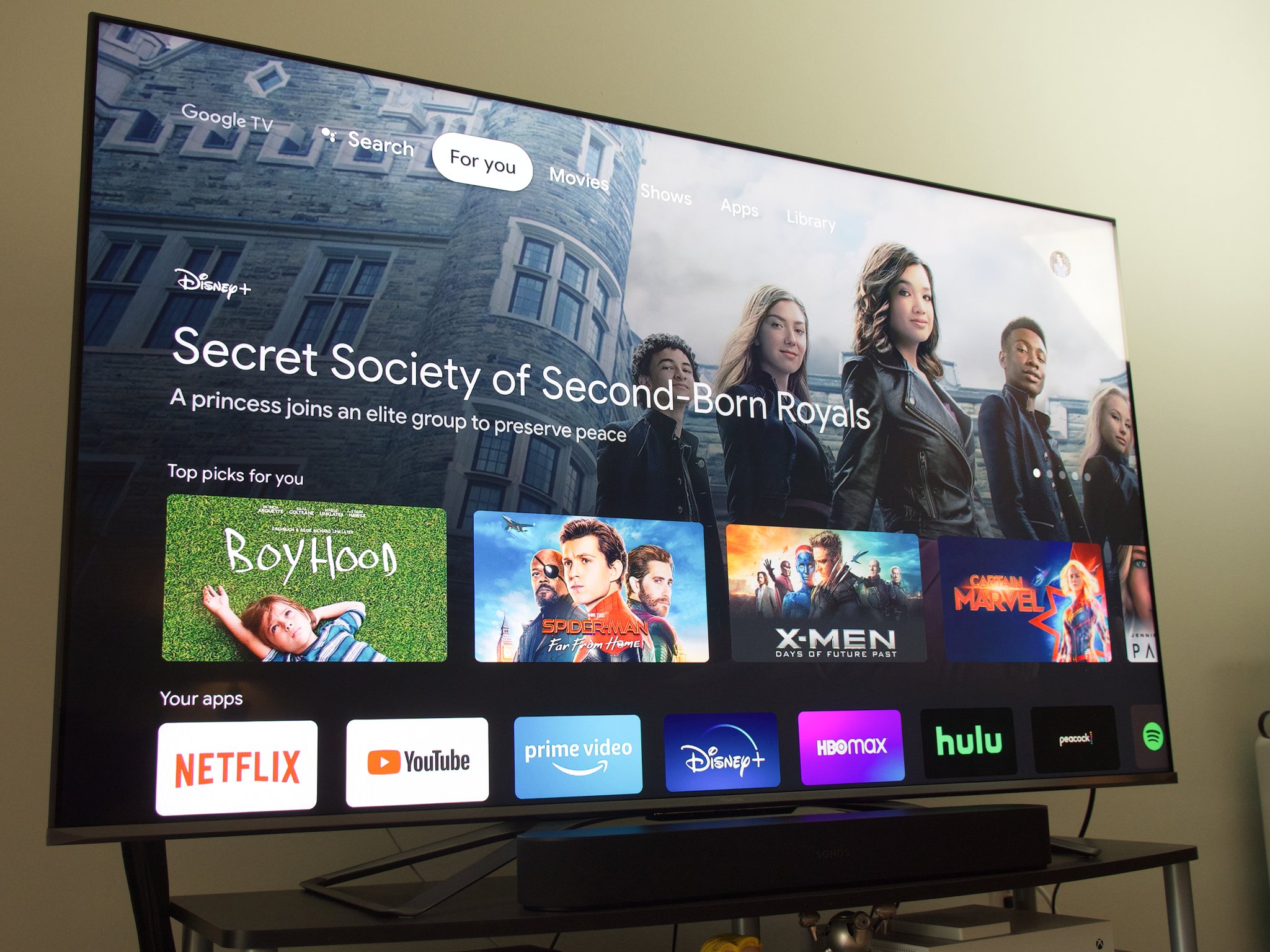
Thankfully, like with its Pixel phones, Google has baked in a custom flavor of the long-running Android TV streaming platform for the Chromecast with Google TV. The twist on the existing streaming platform has all the Googlely things you might expect like suggested content based on what you watch and, of course, the Play Store. The Play Store is the access point to find your favorite streaming services that support Android TV, thus Google TV, to enjoy all of the shows you can get enough of — and some you have yet to discover.

Because the Chromecast with Google TV supports the Play Store, you'll be some games to play on the new streaming device too. While this dongle isn't quite a powerful as an Nvidia Shield, it can play some light games. The new remote was designed to be just as intuitive for playing games as for controlling your TV.

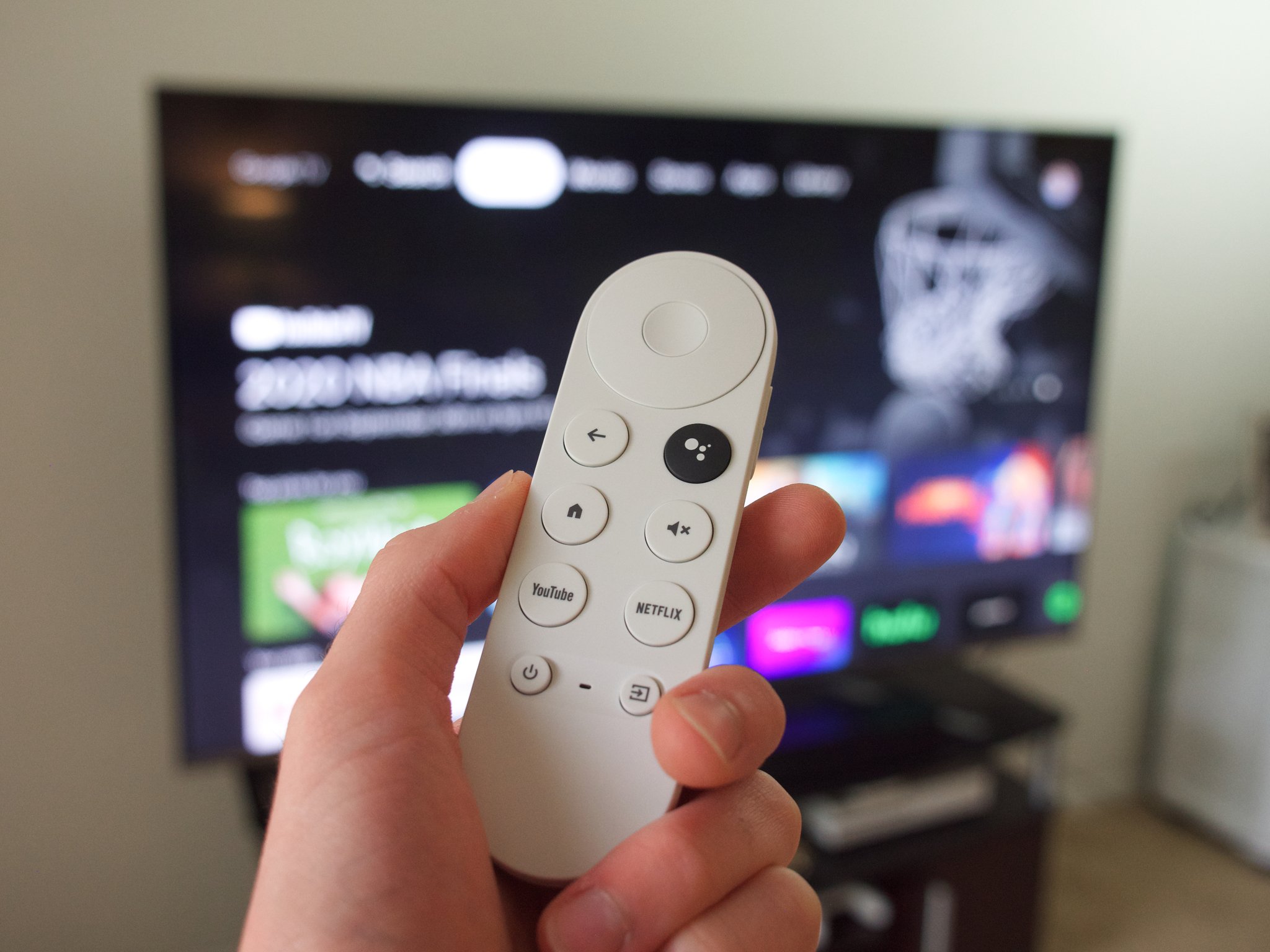
Speaking of that remote, while it is well designed and full of some great features, it's still a remote, and those things tend to go missing from time to time. Not to worry, should it walk off on its own or is slide between the couch cushions, you can get a replacement so you'll be able to keep on streaming and finding new apps on the Play Store.

Googlefy your TV

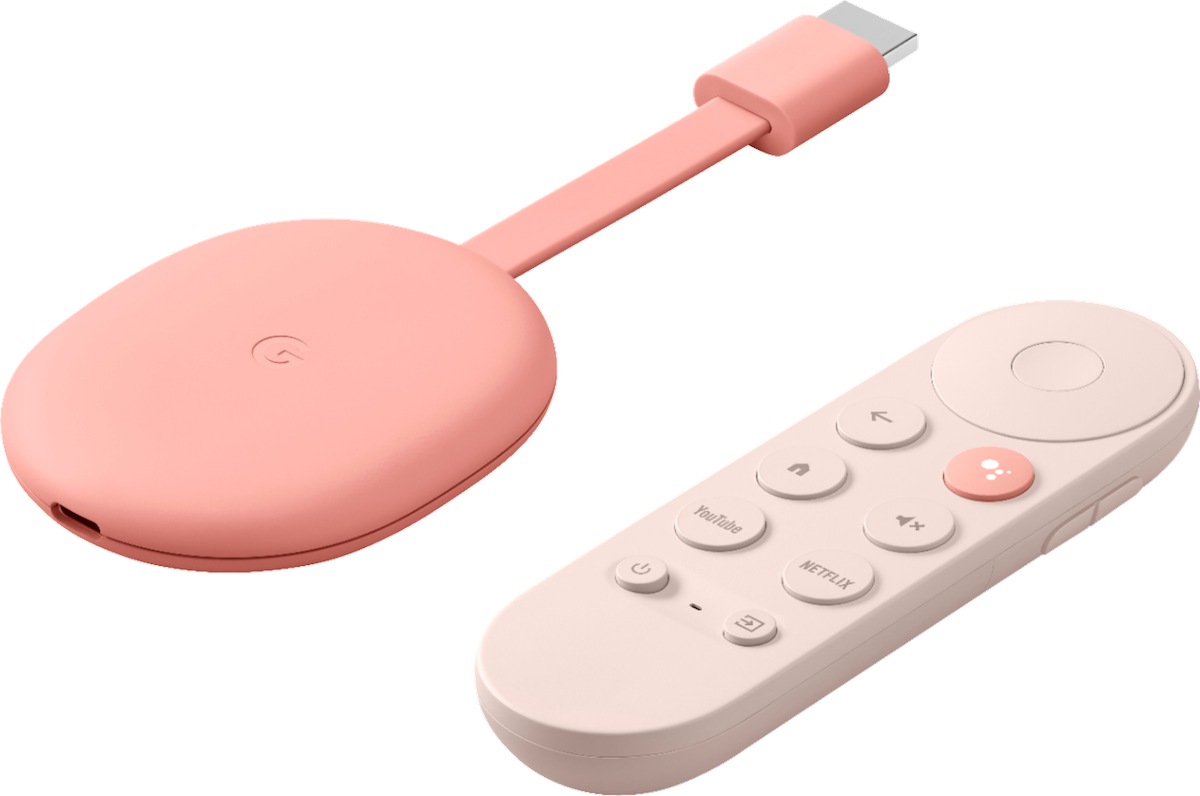
Chromecast with Google TV

$50 at Best Buy $50 at Walmart $50 at B&H

Casting and more

The Chromecast with Google TV is the streaming device that we've been waiting a long time for. Google gave us a powerful Chromecast with 4K streaming from your favorite streaming apps from the Play Store — plus a remote.


from Android Central - Android Forums, News, Reviews, Help and Android Wallpapers https://ift.tt/34ThdmT
via IFTTT

Messaging in Google Photos is a breeze with these quick steps!

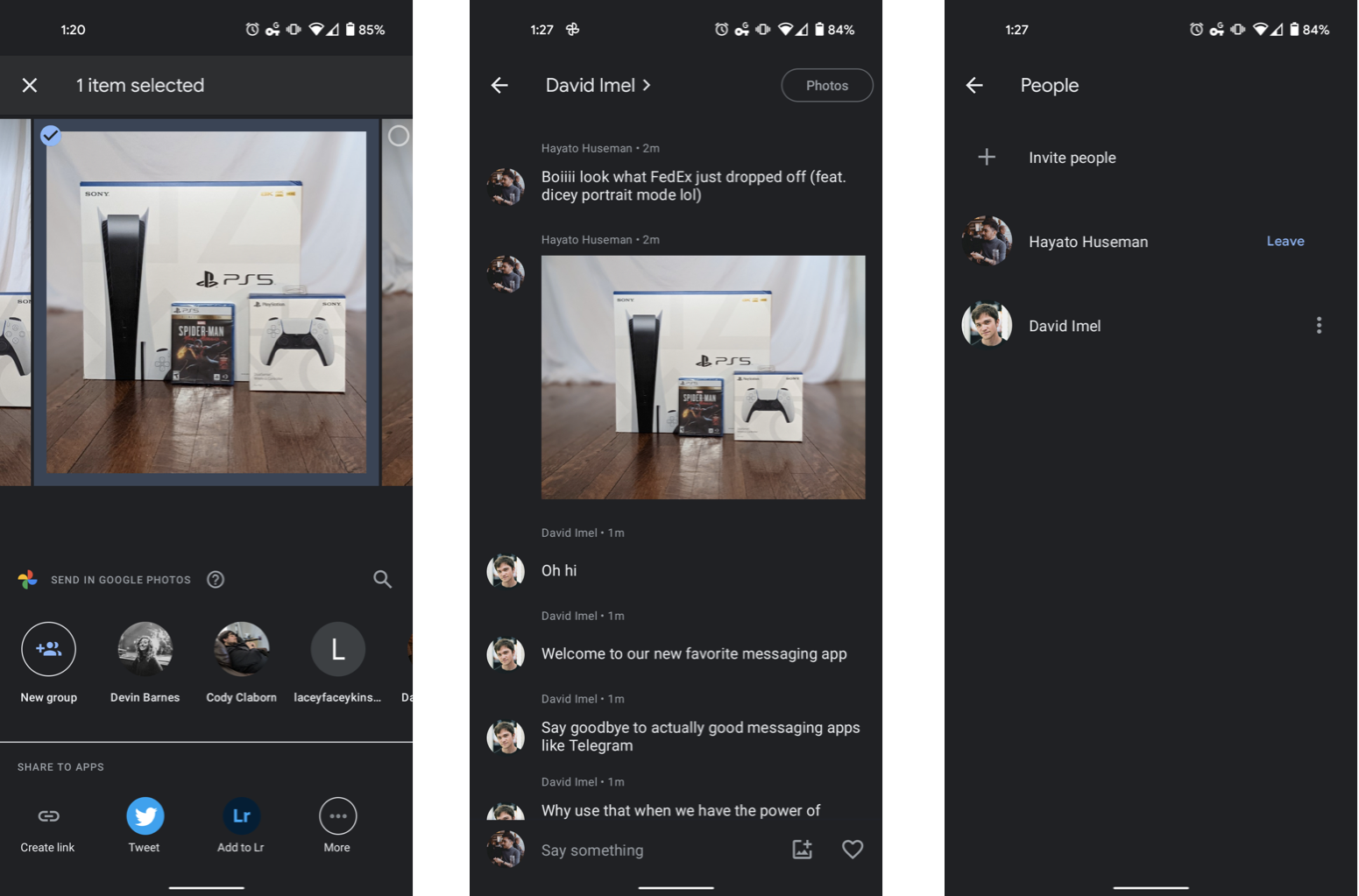
Another day, another messaging platform from Google — but don't worry, this isn't yet another attempt to make the next best Android messaging app. Instead, Google Photos is making it easier to share and discuss photos with a self-contained messaging section. It works similarly to direct messaging in social apps like Instagram, and no longer requires you to create shared albums. Here's how it works.

Phone used in this guide

How to use Google Photos' new messaging feature

Messaging in Google Photos is still fairly new and rudimentary, but it's easy enough to start using with anyone else who uses the app. It uses the same sharing menu that previously required creating entire albums and quickly starts to feel like second nature.

  1. Open Google Photos and tap any image or video in your gallery that you'd like to share.
  2. Tap the Share icon in the bottom left corner.
  3. Under Send in Google Photos, tap the name or email address of the user you want to message. You can also create a group to message multiple people at once.
  4. You'll be taken to the new messaging screen with a thumbnail preview of your photo. Tap send or write out a message to go along with the image.

That's it! From there, you can start a conversation about the photo you shared, send each other new media, and add any images you receive to your library. There are read receipts so you know when the other person has seen your message, and you can heart-react to photos and messages or tap the Photos button in the upper-right corner to see all media that's been sent and received. If you want to revisit any messaging threads later on, just go to the Sharing section of Google Photos from your gallery.

Phone used in this guide

The best thing about Google Photos is that it works on just about every phone on the market — even iPhones — along with the web browser on your computer, via the Sharing tab. This makes it a fairly versatile messaging platform since there's no barrier for entry. It's also free to use, with unlimited storage for compressed images or original quality backups using your Google Drive storage allotment.

Pure Google

Google Pixel 5

$700 at Amazon $650 at Best Buy $700 at B&H

The best photos for the best backup service

What better phone to use with Google Photos than one from Google's own Pixel line? The Pixel 5 takes incredible photos with its standard and ultra-wide cameras, and it's the first in line for any updates to new versions of Android.


from Android Central - Android Forums, News, Reviews, Help and Android Wallpapers https://ift.tt/2YRkpLK
via IFTTT
Become a Microsoft Office power user with 74 hours of training for just $40

Source: StackCommerce

If you work behind a desk, chances are that Microsoft apps will be part of your workflow. The Premium Microsoft Office & Data Apps Certification Bundle helps you master the software, with 74 hours of in-depth training. You can get it now for just $39.99 — that is 97% off the full price.

From crunching the numbers in finance to collaborating with the marketing team, there are many ways to use Microsoft products. For this reason, recruiters look for people with a solid knowledge of the most popular apps.

This bundle helps you increase your knowledge, with 18 separate courses on the Microsoft suite. Through easy-to-follow tutorials, the training takes you from beginner to expert.

Along the way, you learn how to work Excel, including VBA, Macros, Power Query, and Pivot Tables. You also learn how to handle SharePoint, Access, Project, Outlook, Teams, PowerPoint, Visio, Word, and even OneNote.

The training comes from Earn and Excel, a collective of highly experienced professionals who have 4.4 stars on Udemy.

The full line-up is worth $1,702 in total, but you can get the bundle today for only $39.99.


The Premium Microsoft Office & Data Apps Certification Bundle – $39.99

See Deal


Prices subject to change 


from Android Central - Android Forums, News, Reviews, Help and Android Wallpapers https://ift.tt/37XBMk6
via IFTTT
How to set up and start using your Fitbit

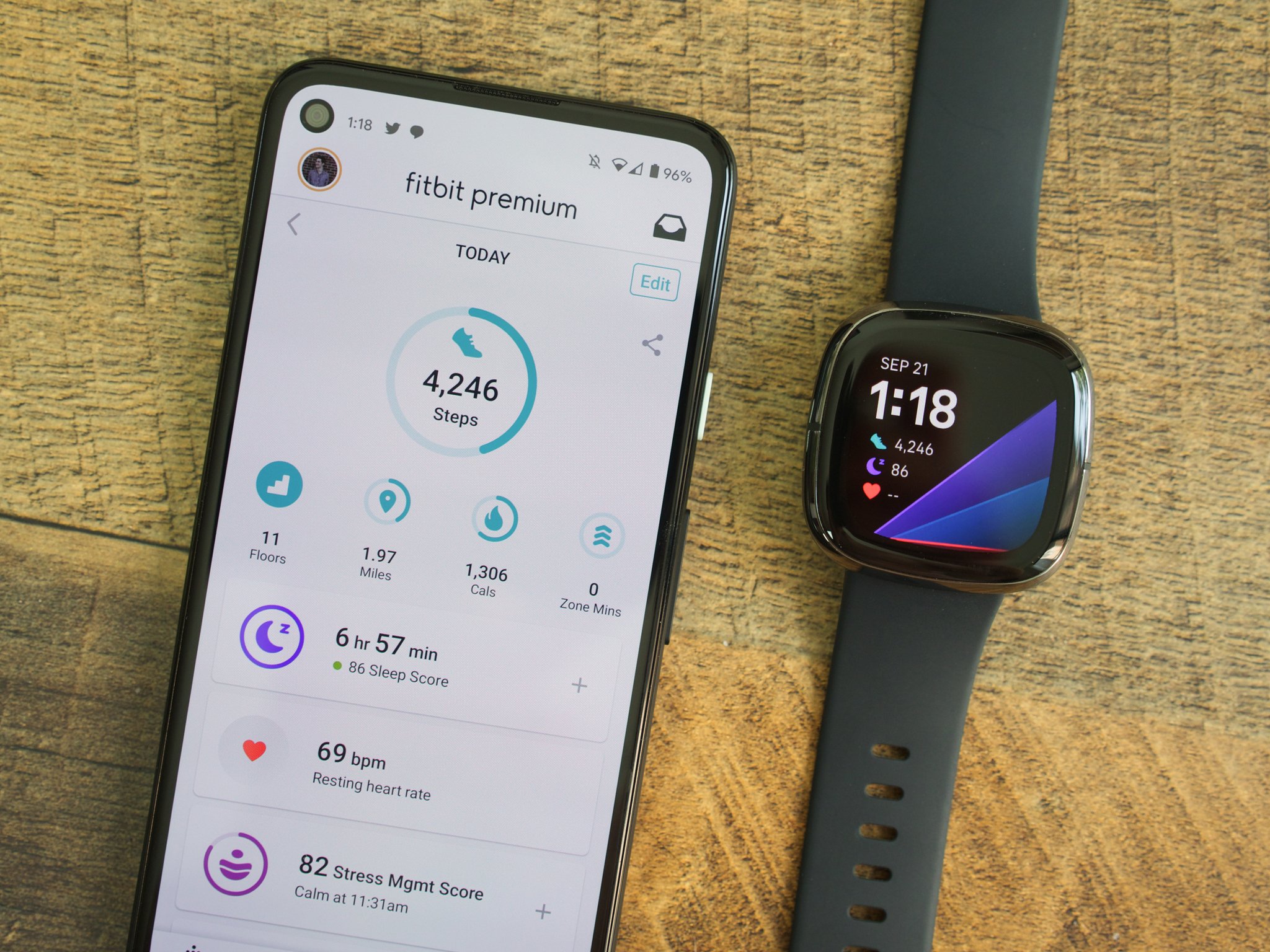
No matter if you're trying to lose weight, be more active throughout the day, or anything else in between, Fitbits are among the best fitness trackers out there and a great way to help you live a healthier life. Excited to start using yours but need some help getting it set up for the first time? You're in the right place.

Products used in this guide

How to download the Fitbit app for Android

Before we do anything else, we need to get the Fitbit app downloaded on your phone. Doing so is quite simple.

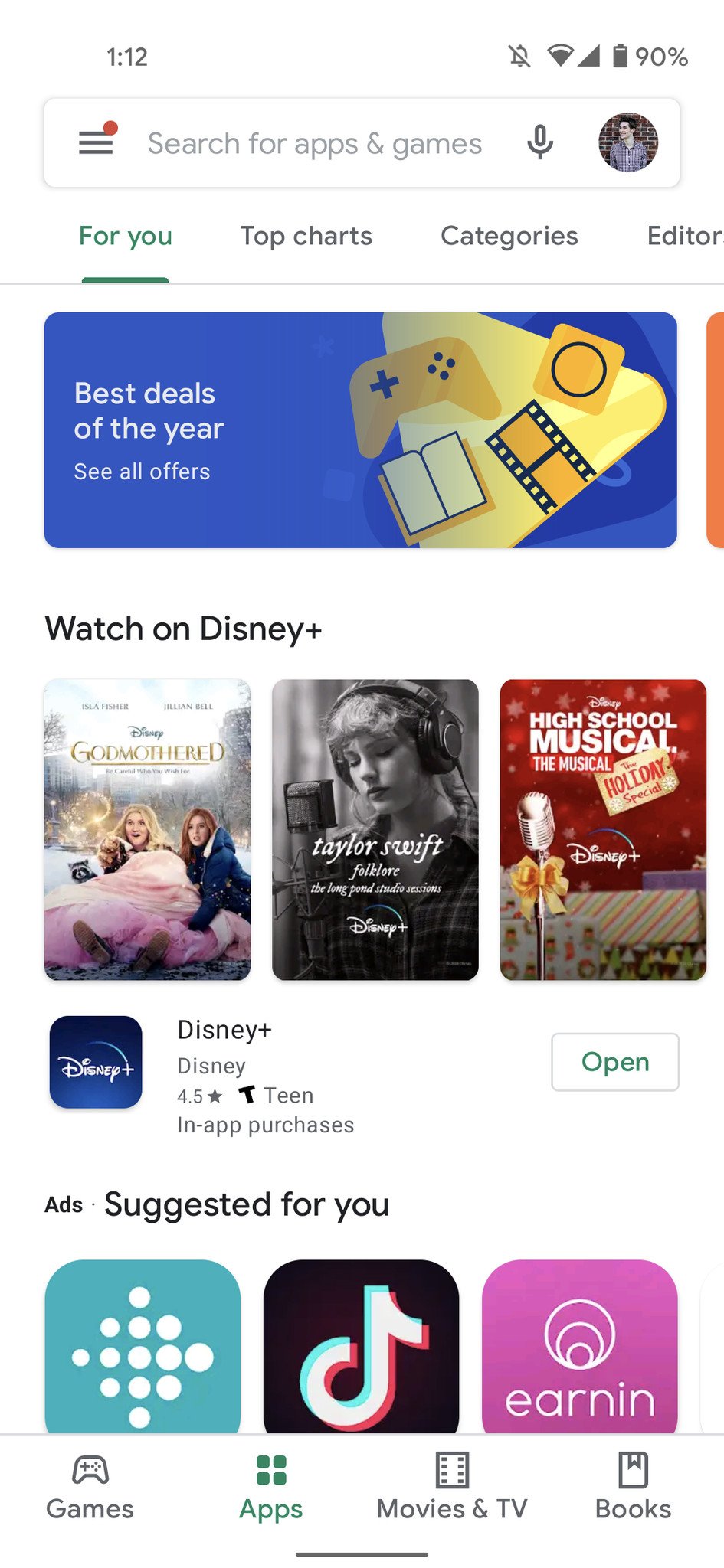
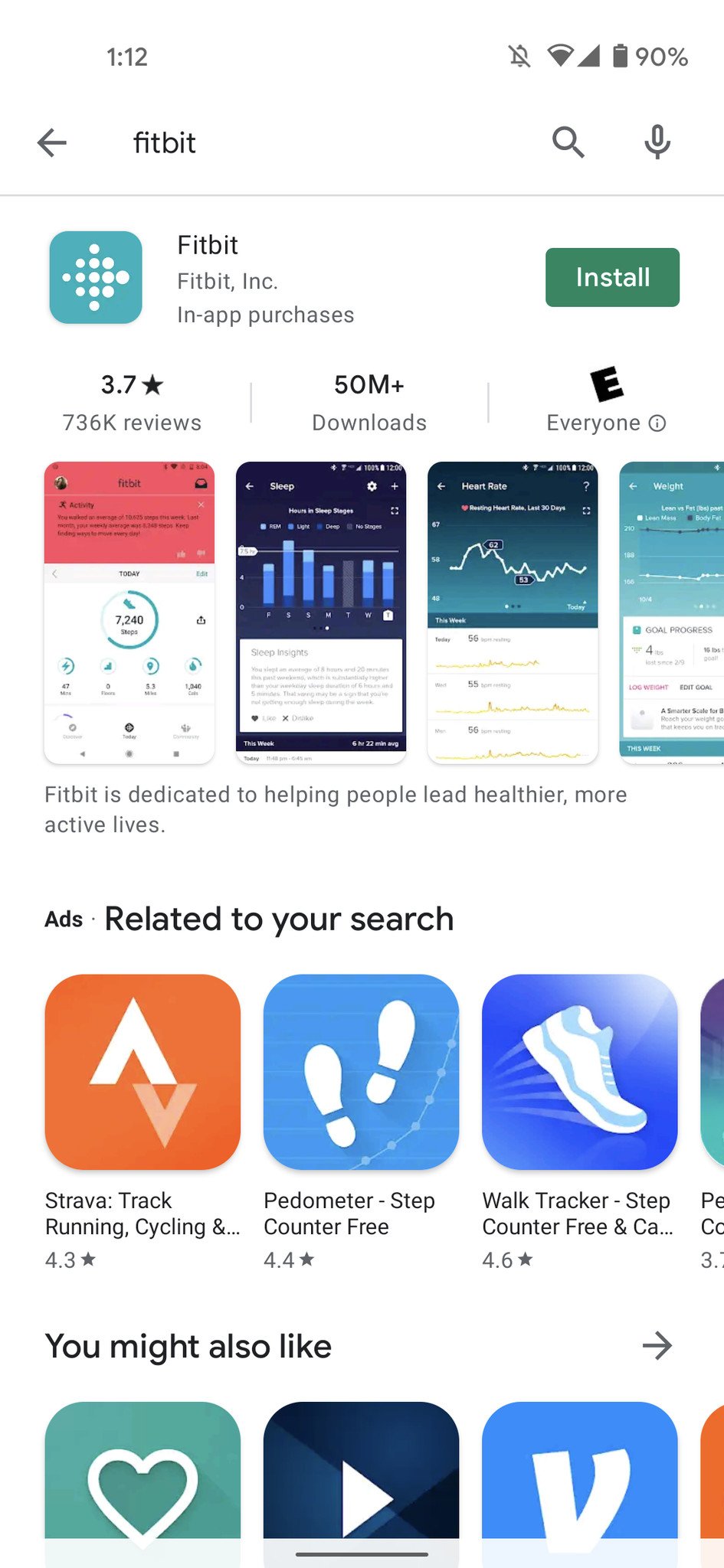
  1. Open the Google Play Store app on your phone.
  2. Tap the search bar at the top and search Fitbit.
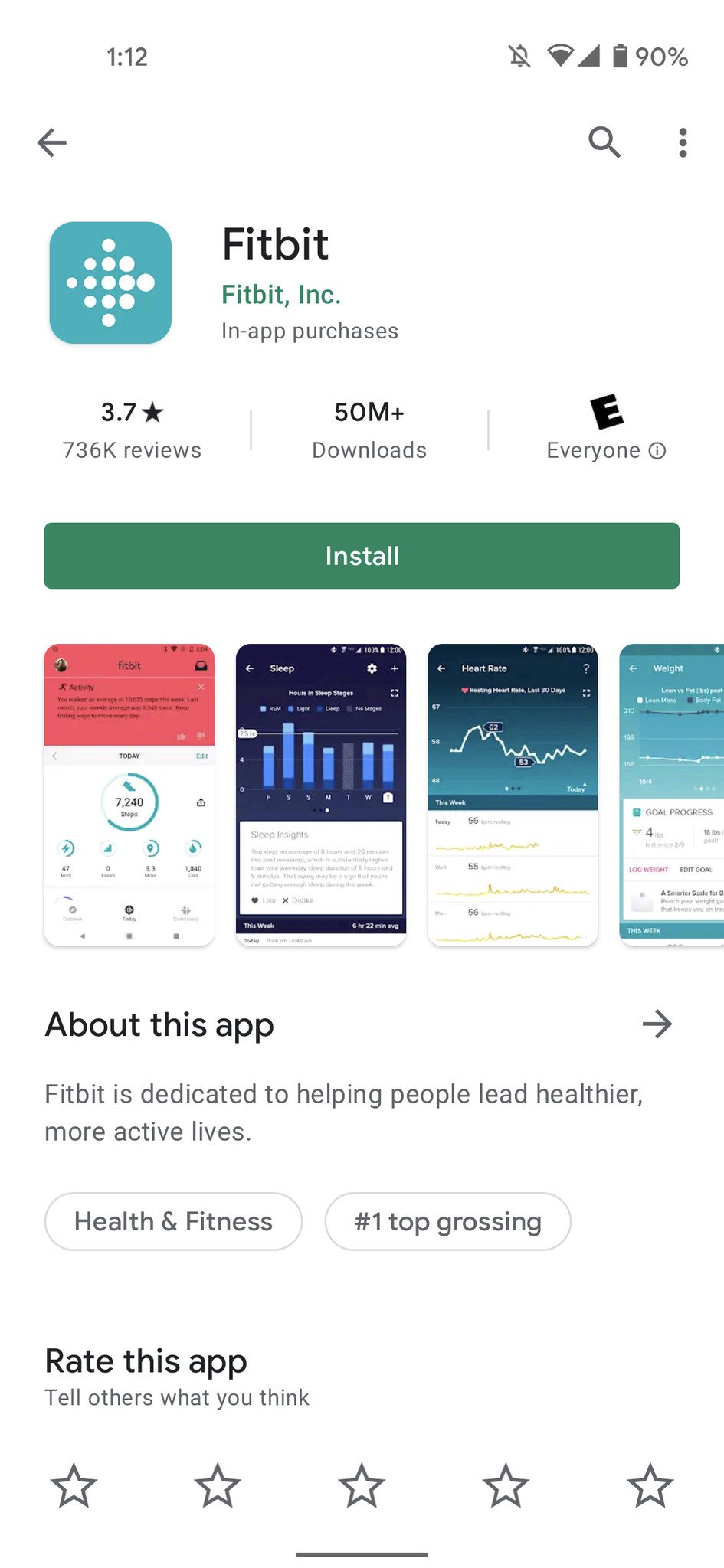
  3. Tap the Fitbit app (it should be the first result).
  4. Tap the green Install button.

How to set up your Fitbit

Now that you have the Fitbit app on your phone, it's time to get your new tracker/smartwatch all set up and ready to go. The process looks a bit different depending on whether or not you already have a Fitbit account, so choose the option below that best suits you.

How to set up a Fitbit with a new account

If you've never used a Fitbit before and need to make your account, here's what the process looks like.

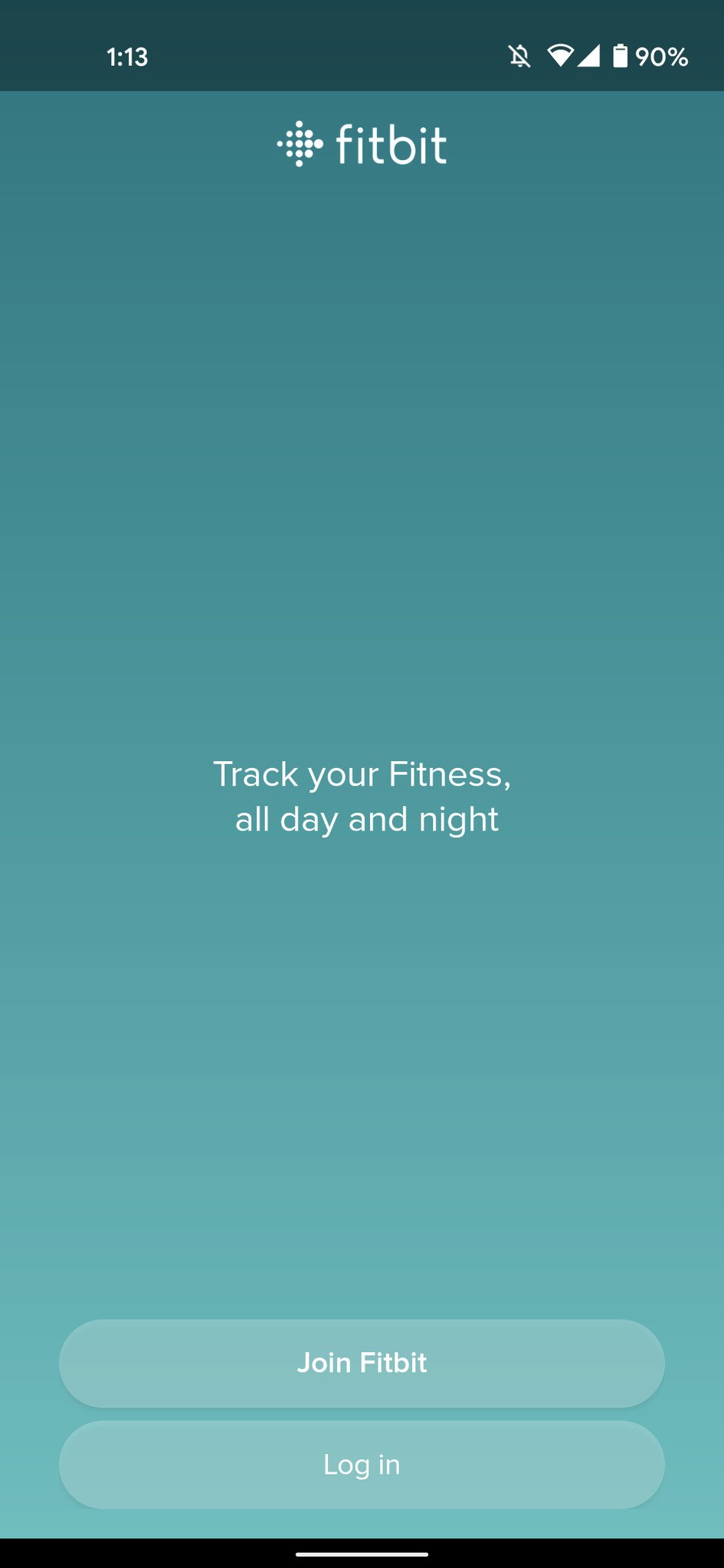
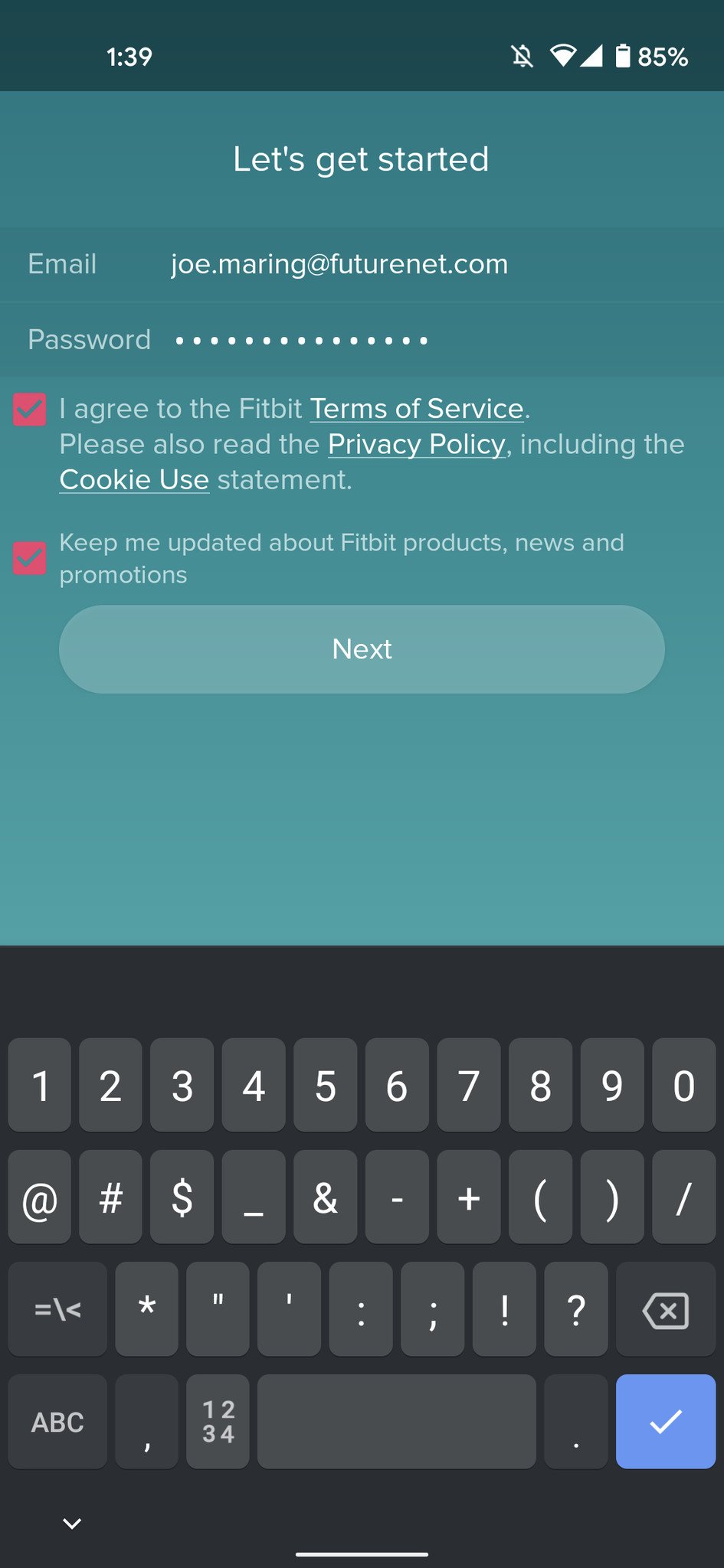
  1. Open the Fitbit app on your phone.
  2. Tap Join Fitbit.
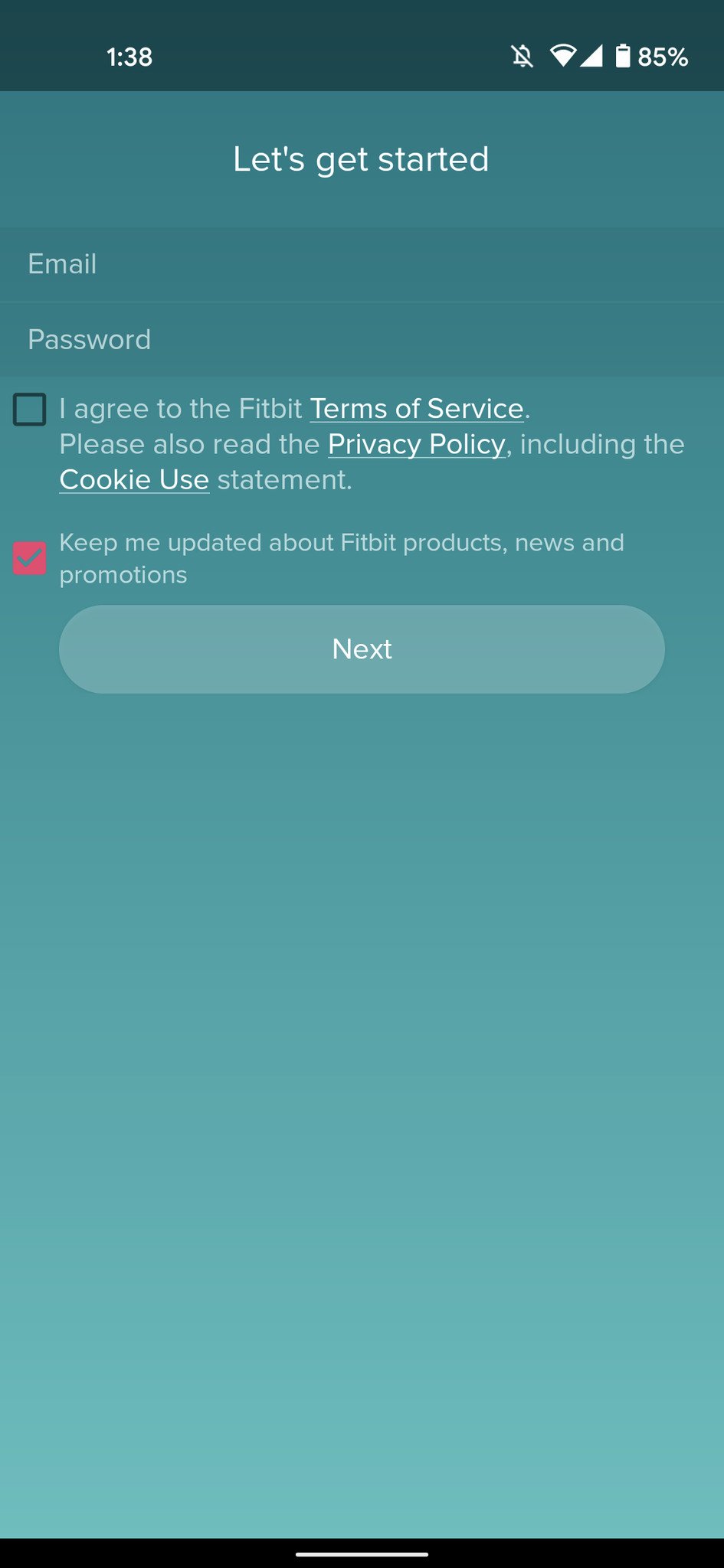
  3. Enter your email and create and a password.
  4. Tap Next.

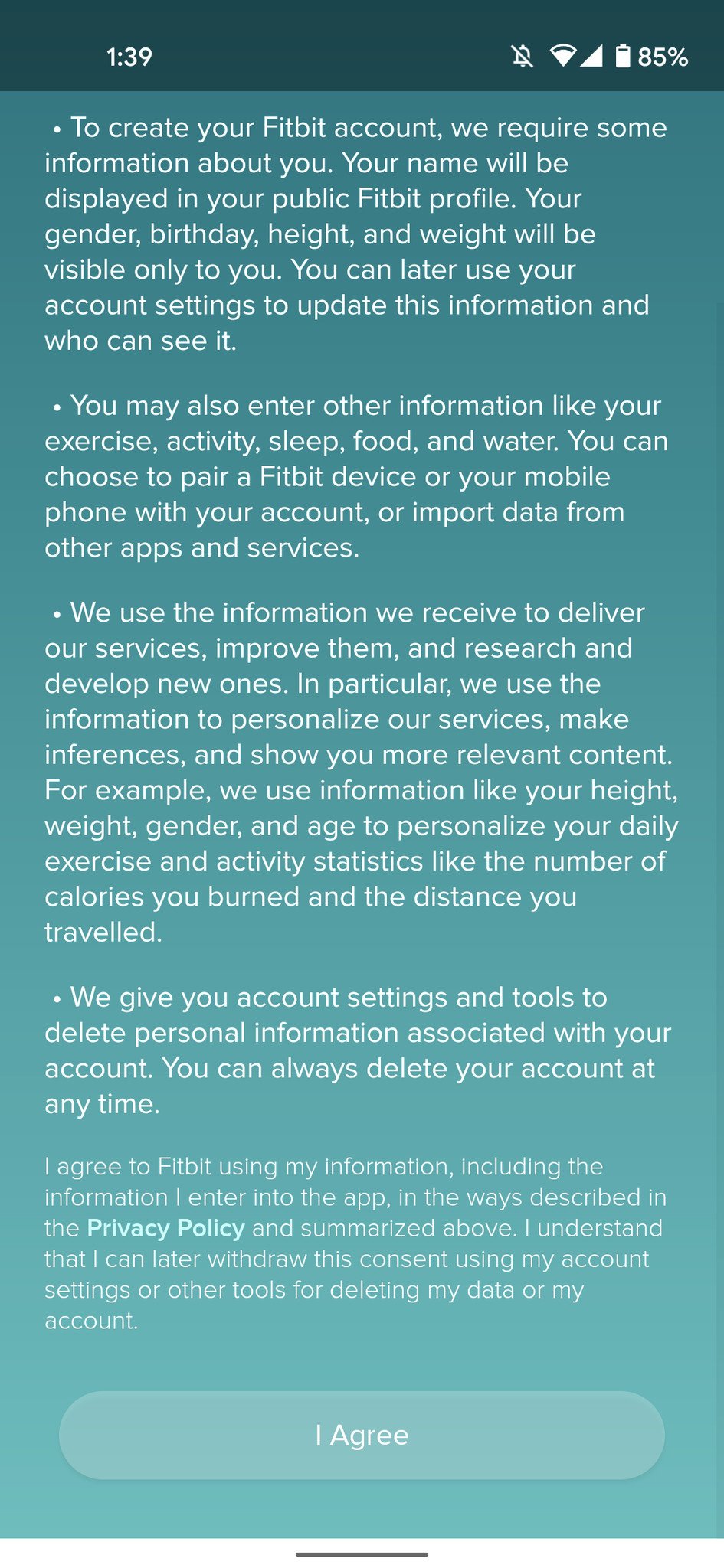
  5. Scroll to the bottom of the privacy policy page.
  6. Tap I Agree.
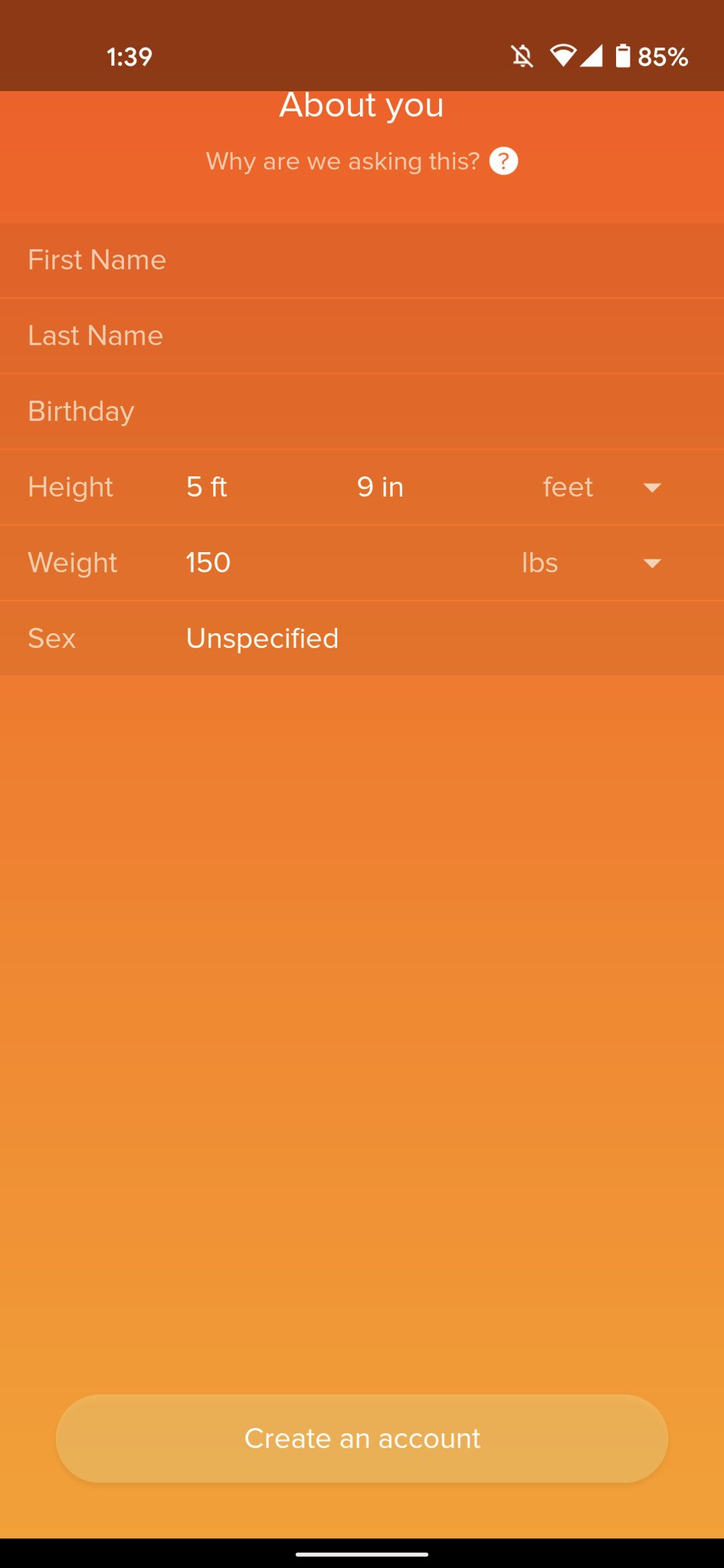
  7. Enter all of your personal info.
  8. Tap Create an account.
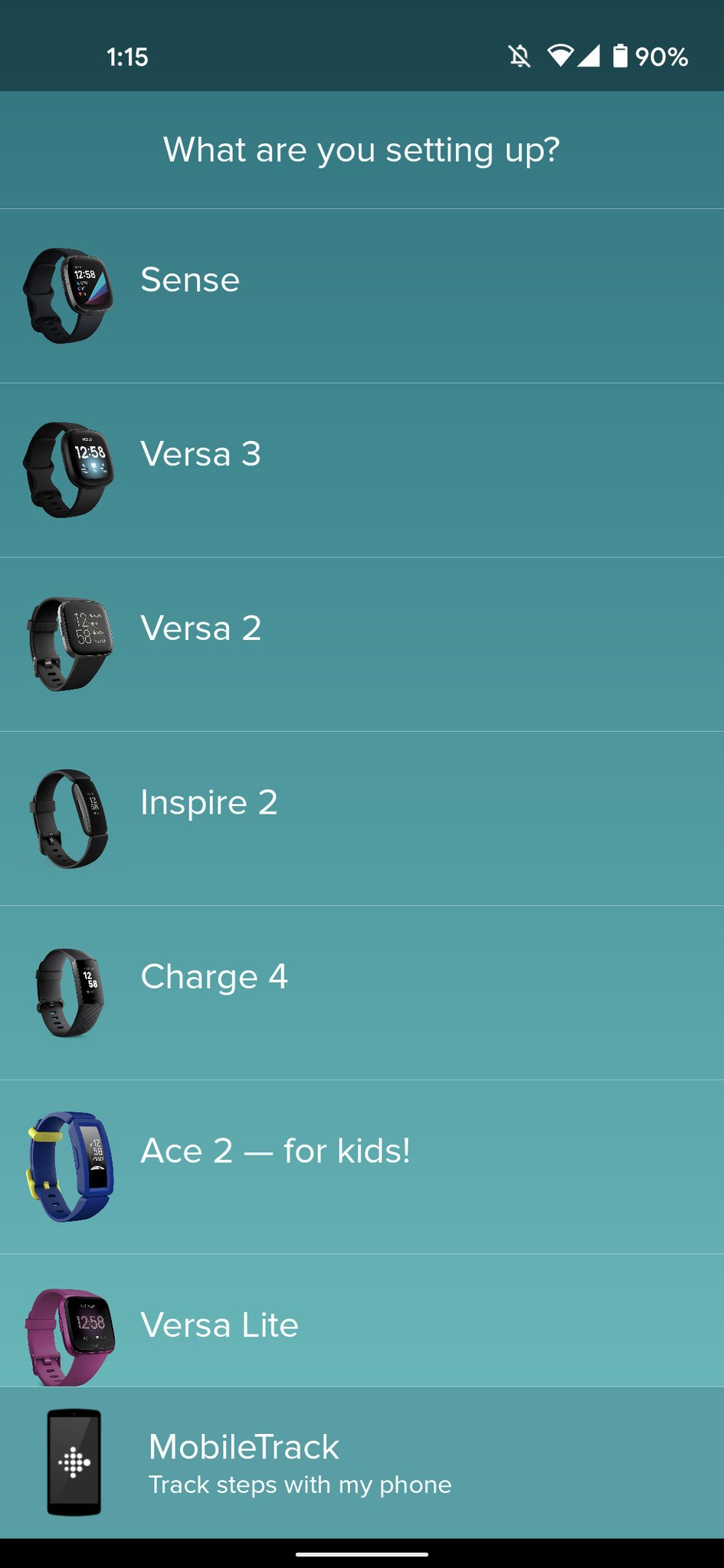
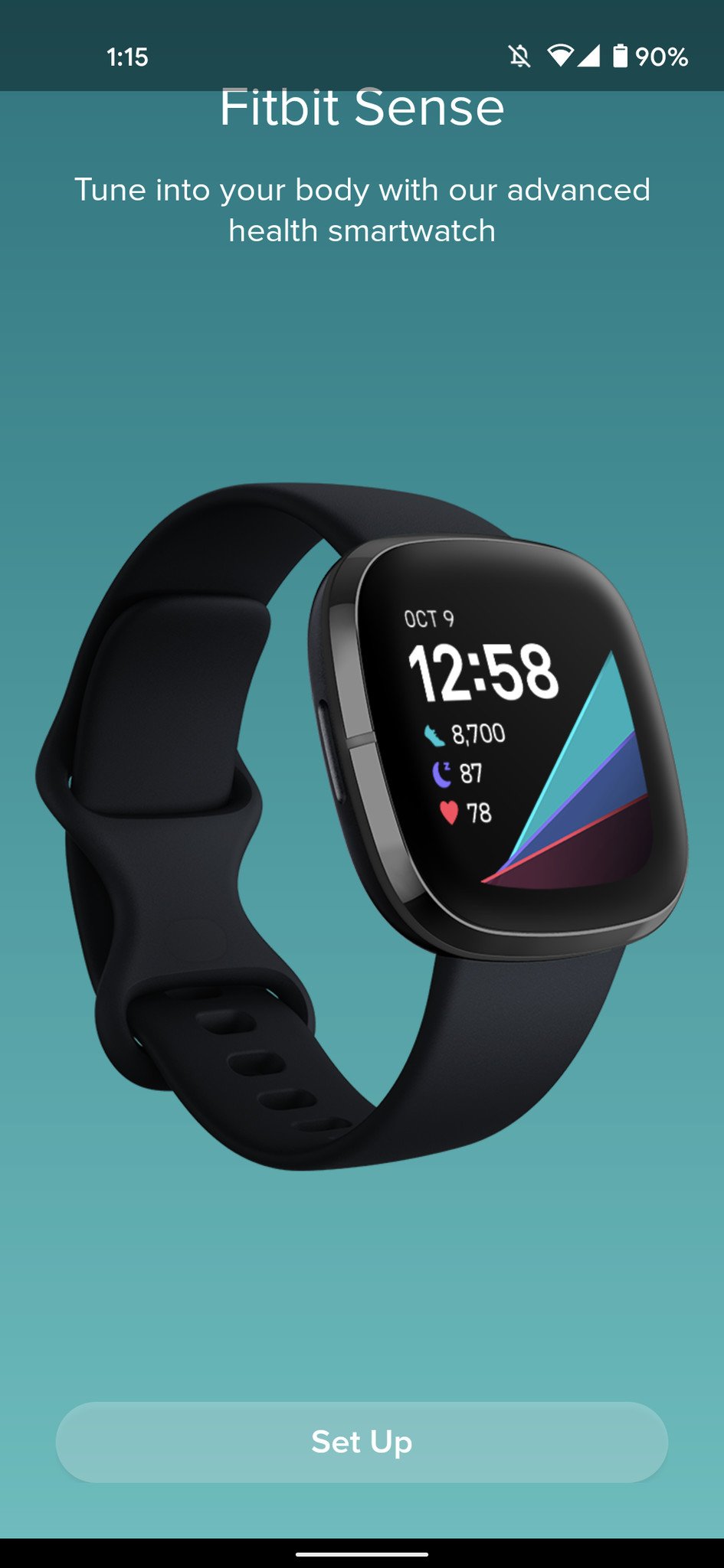
  9. Select the Fitbit you're setting up.

  10. Tap Set Up.
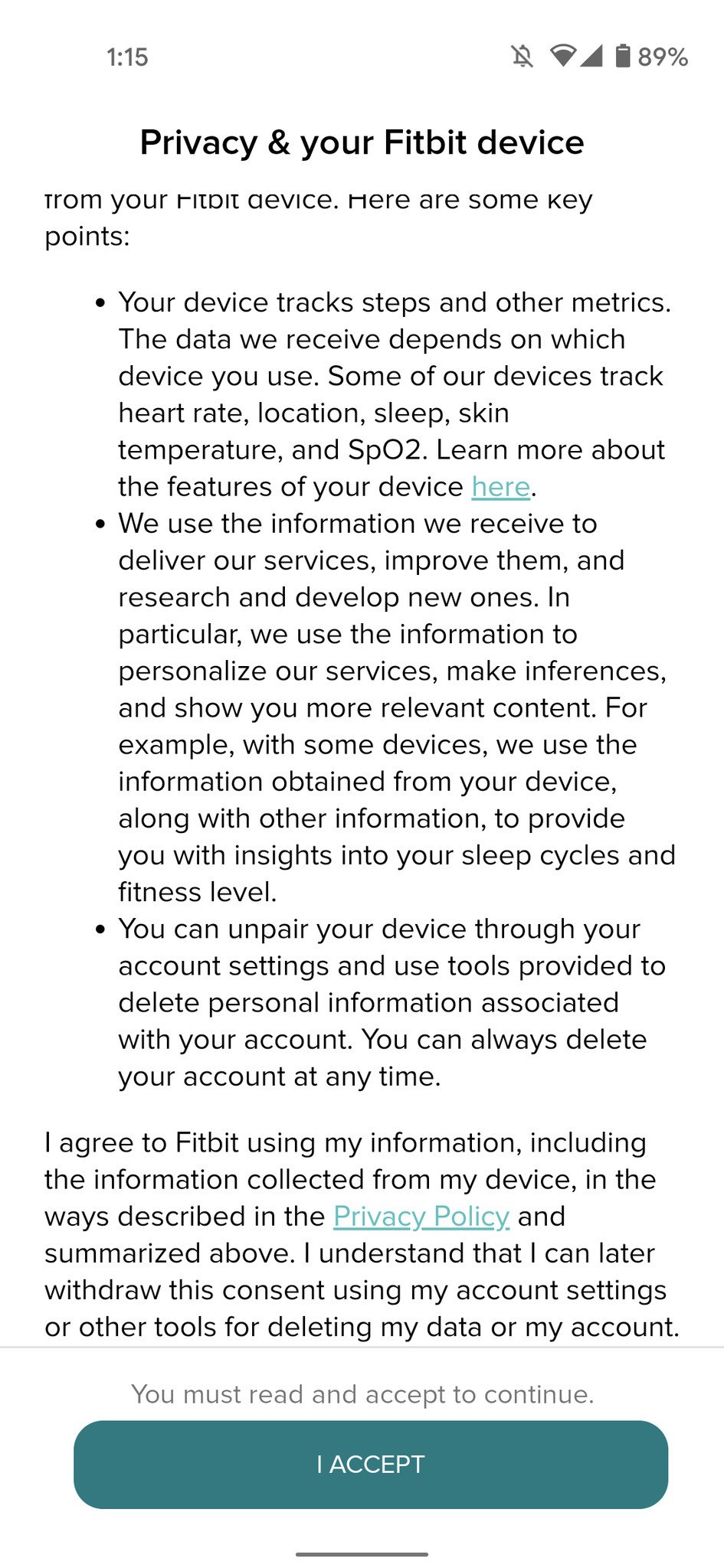
  11. Scroll down and tap I Accept.
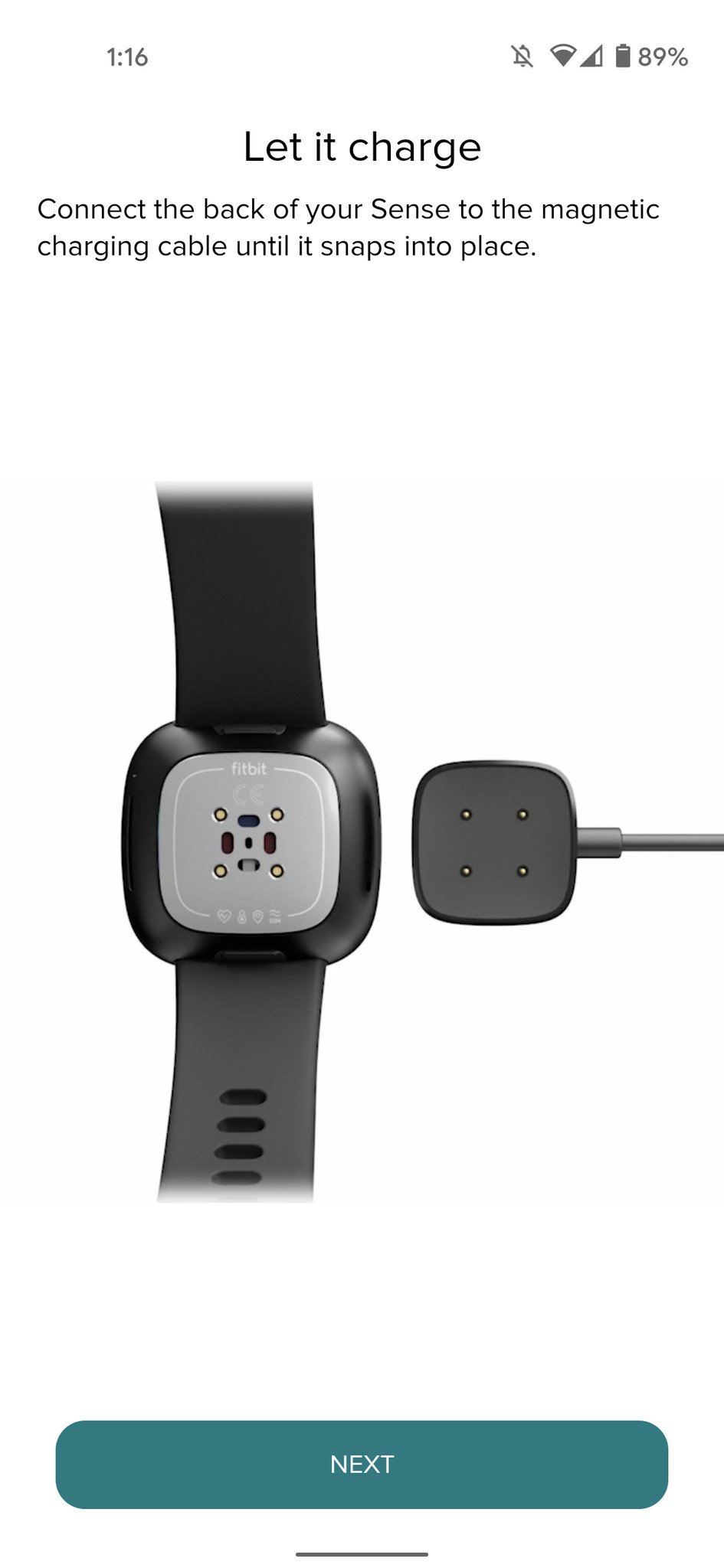
  12. Tap Next.

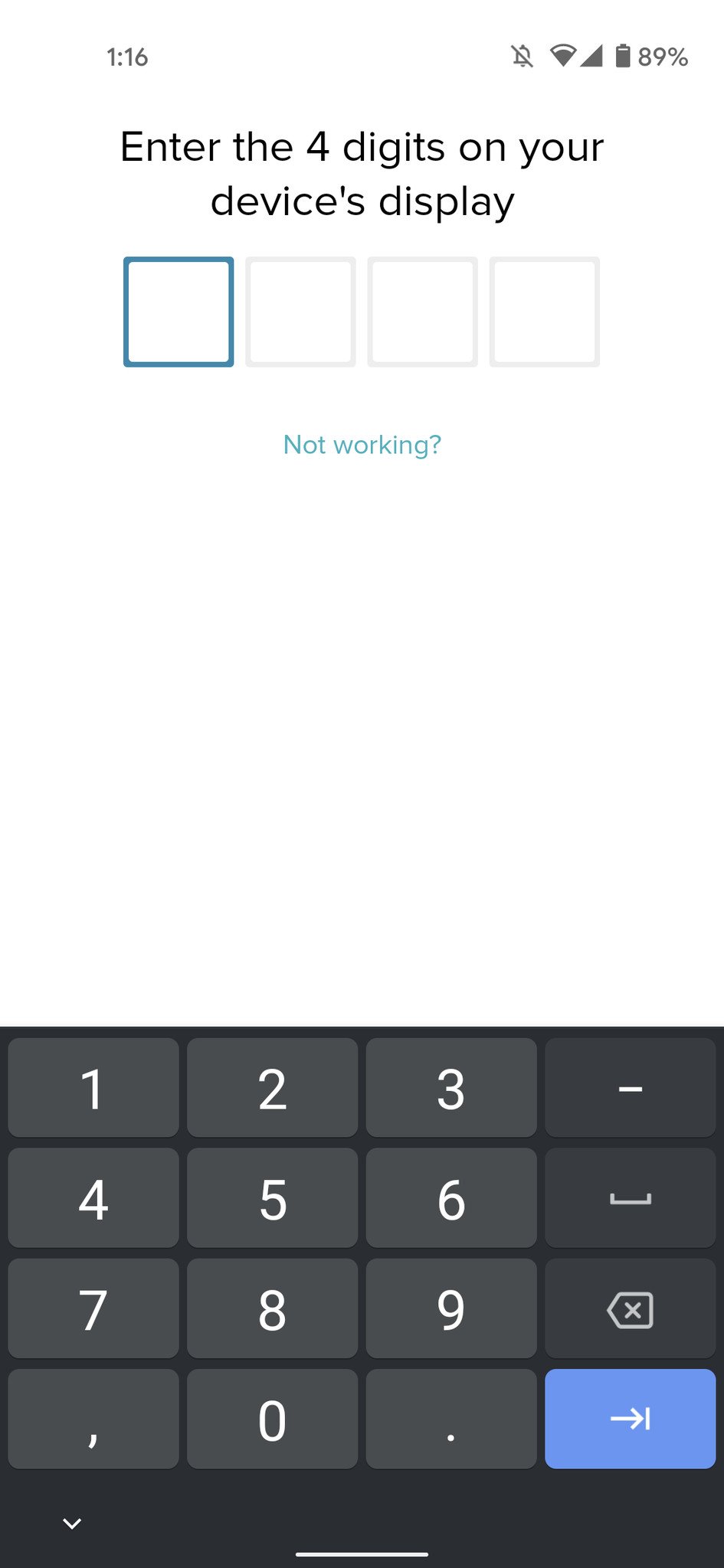
  13. Enter the four-digit code from your Fitbit.
  14. Tap Next.
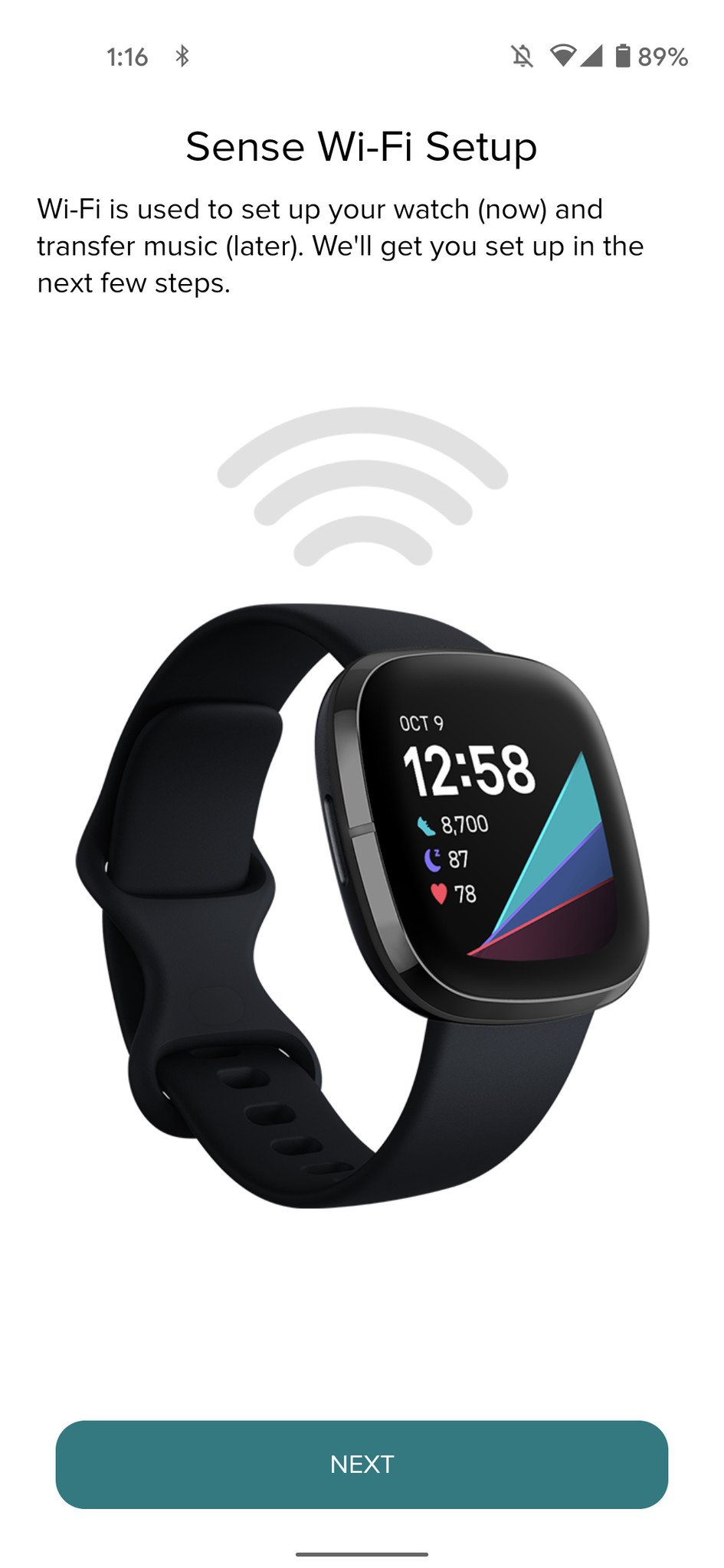
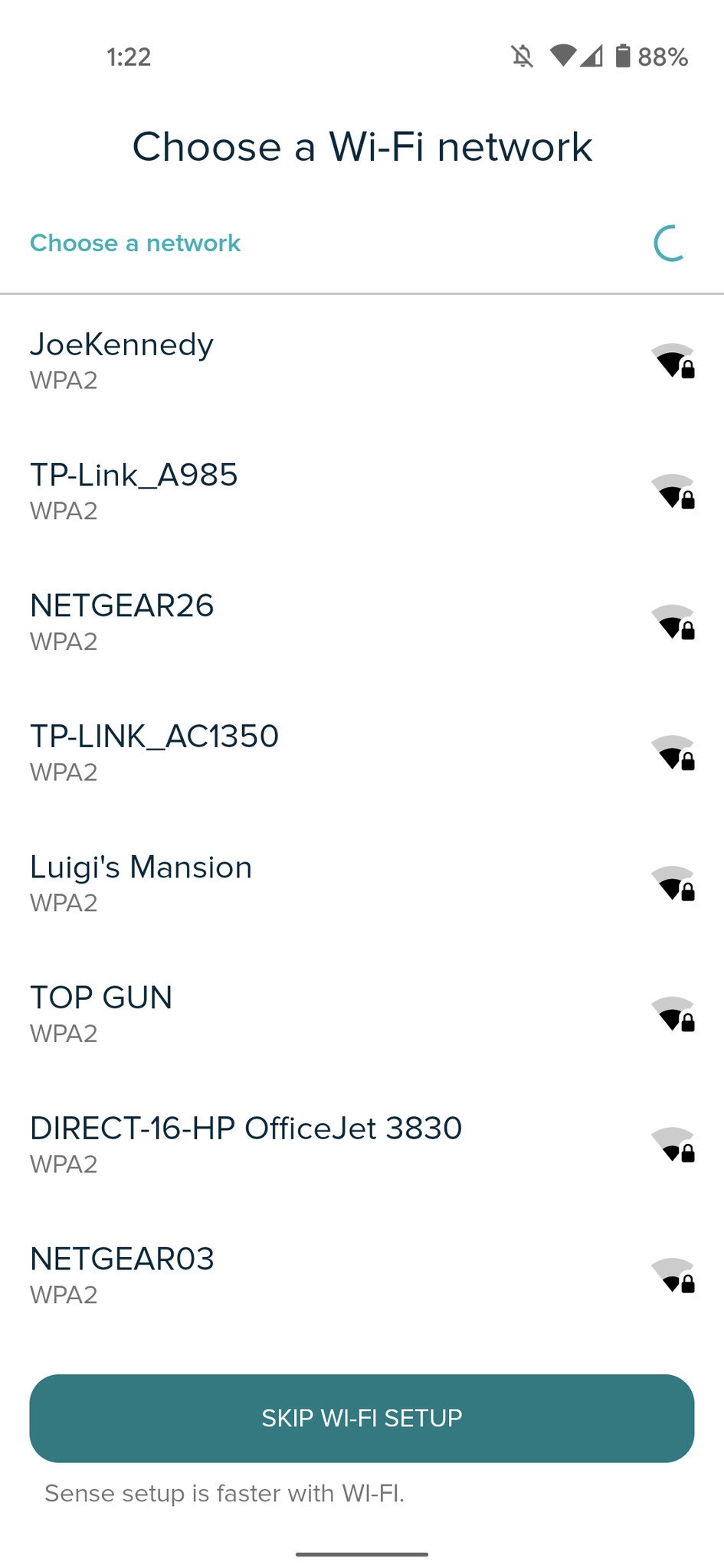
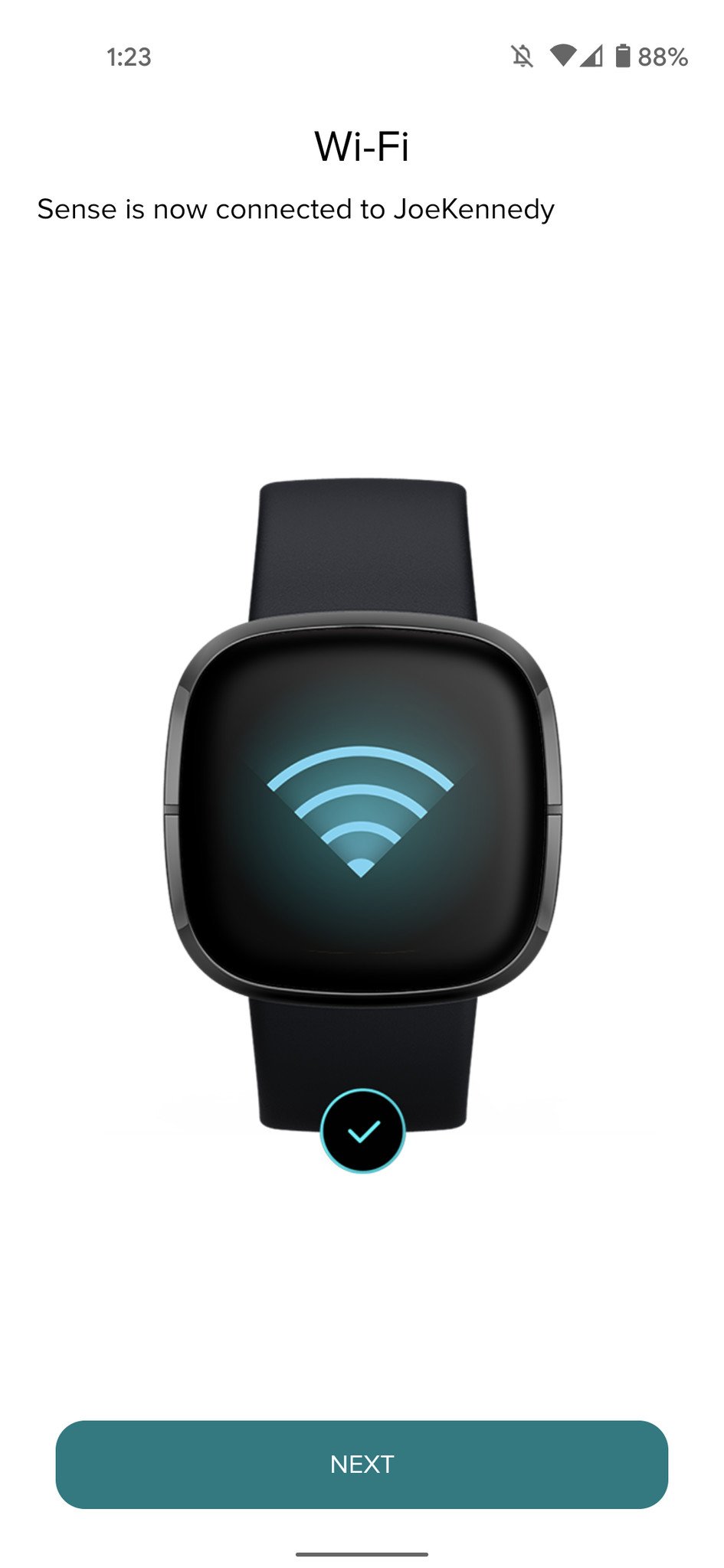
  15. Select your Wi-Fi network.

  16. Enter your Wi-Fi password.
  17. Tap OK.
  18. Tap Next.
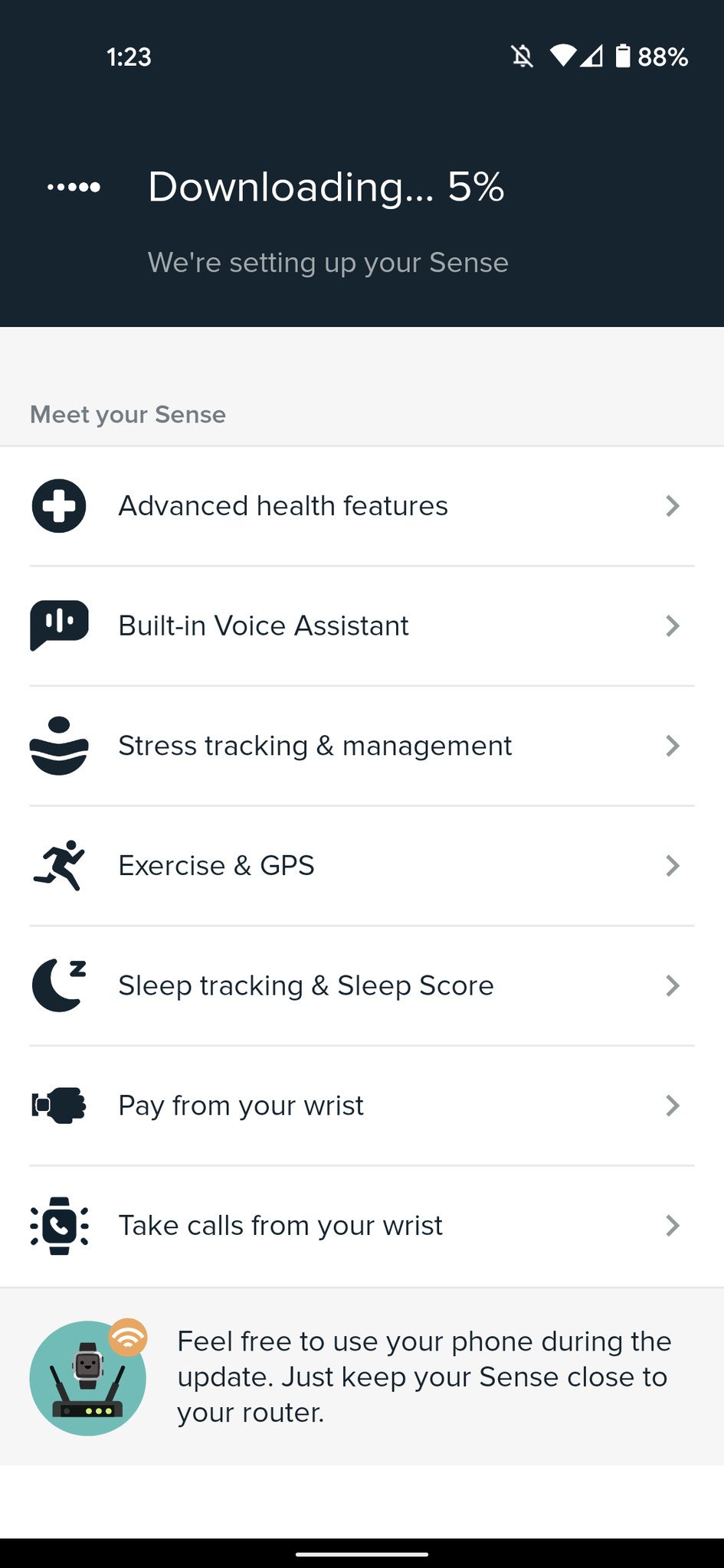
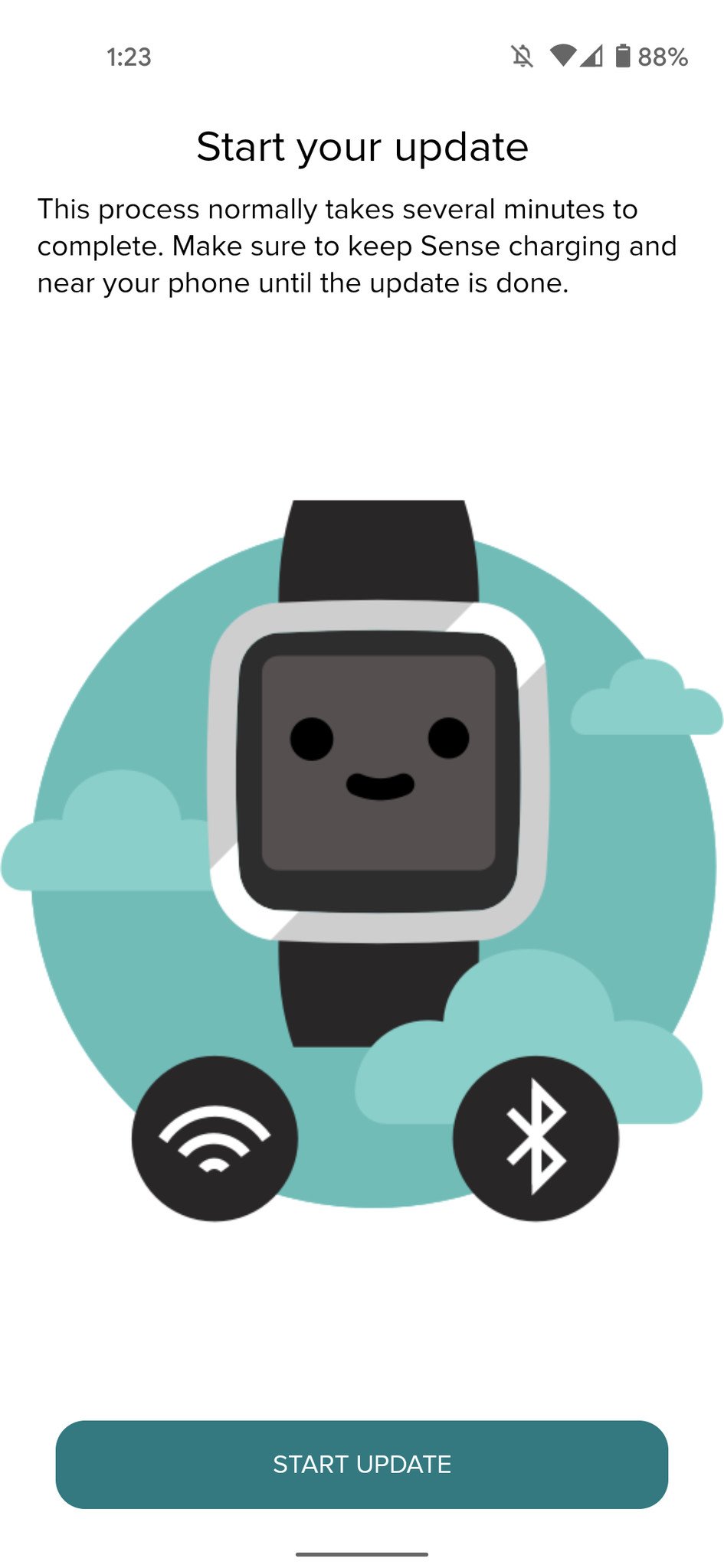
  19. Tap Start Update.

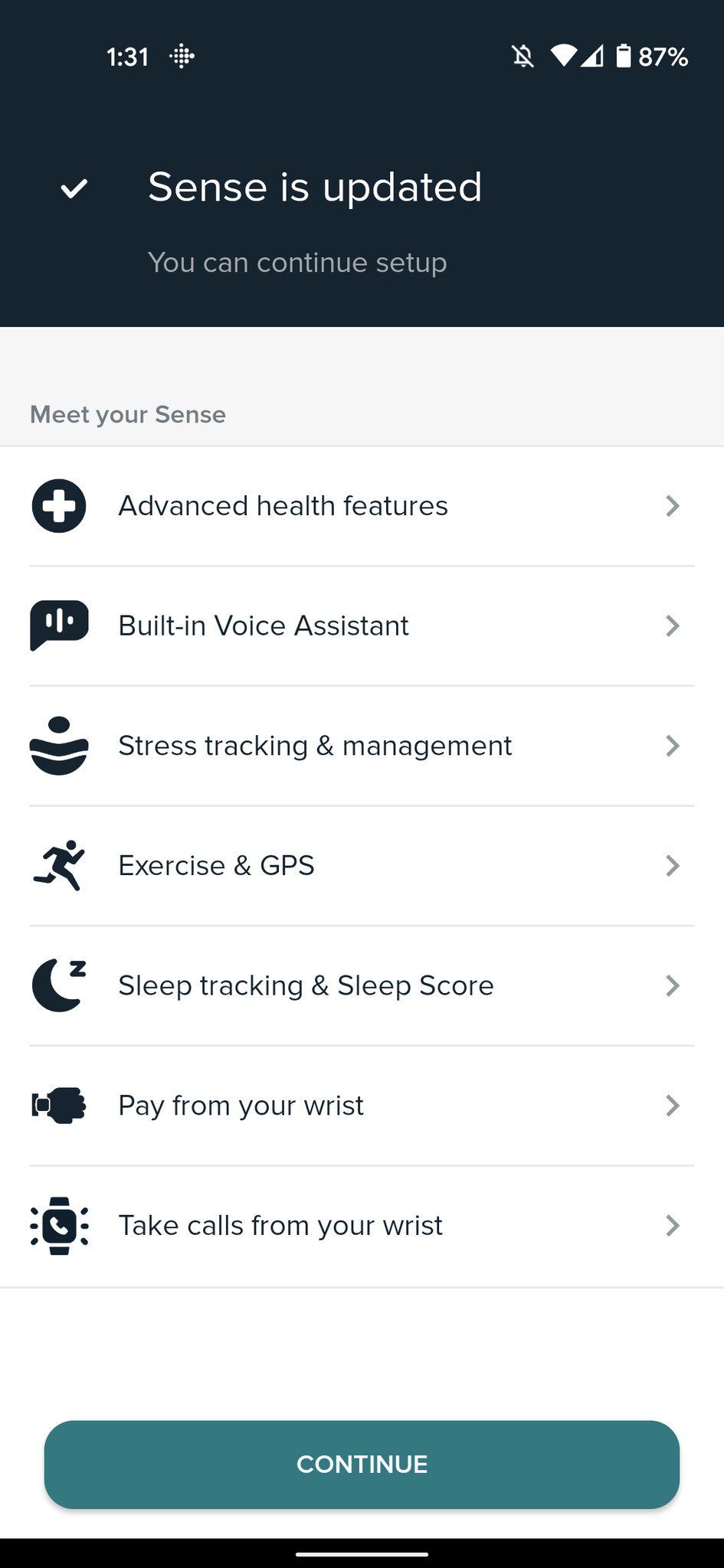
  20. Wait for the update to finish.
  21. Tap Continue.
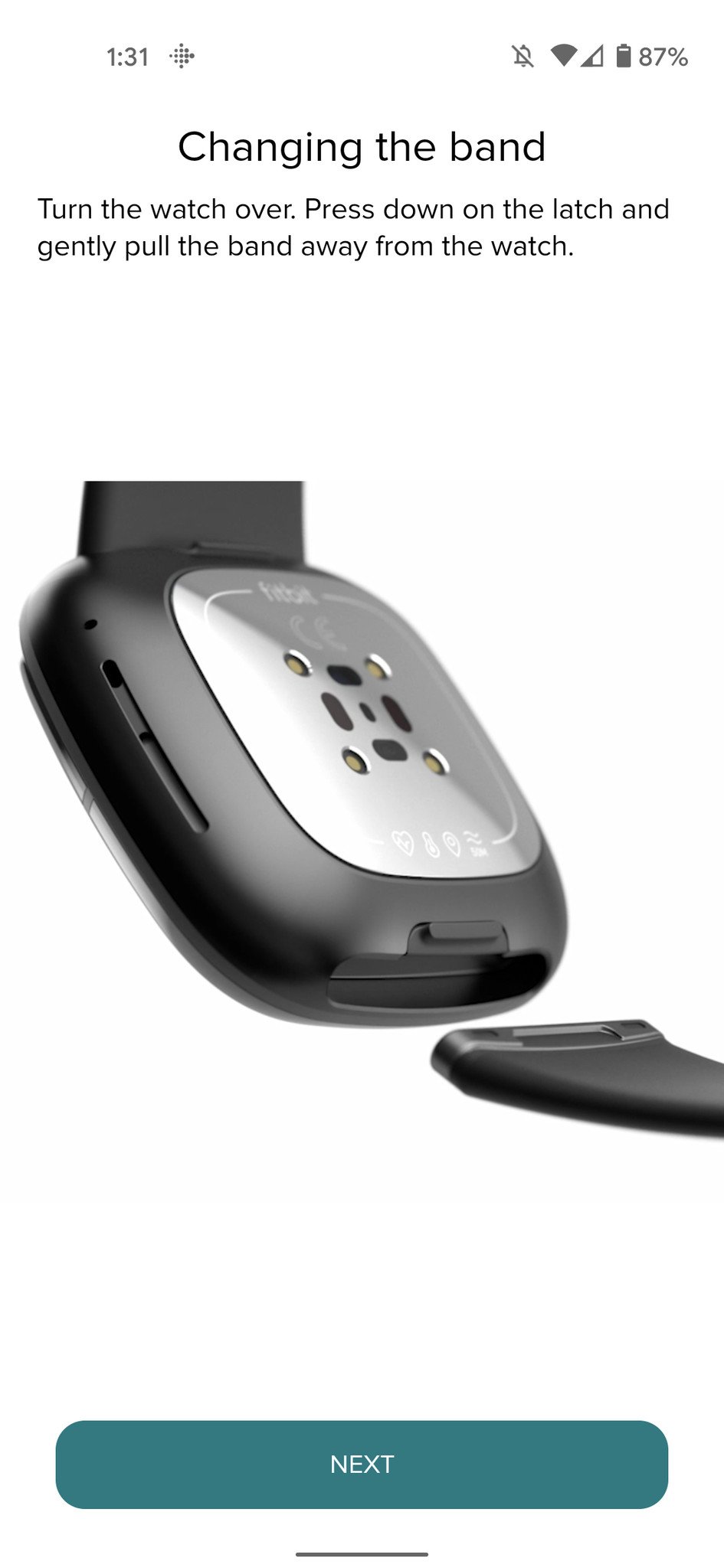
  22. Tap Next on all of the pages showing you how to use your Fitbit.

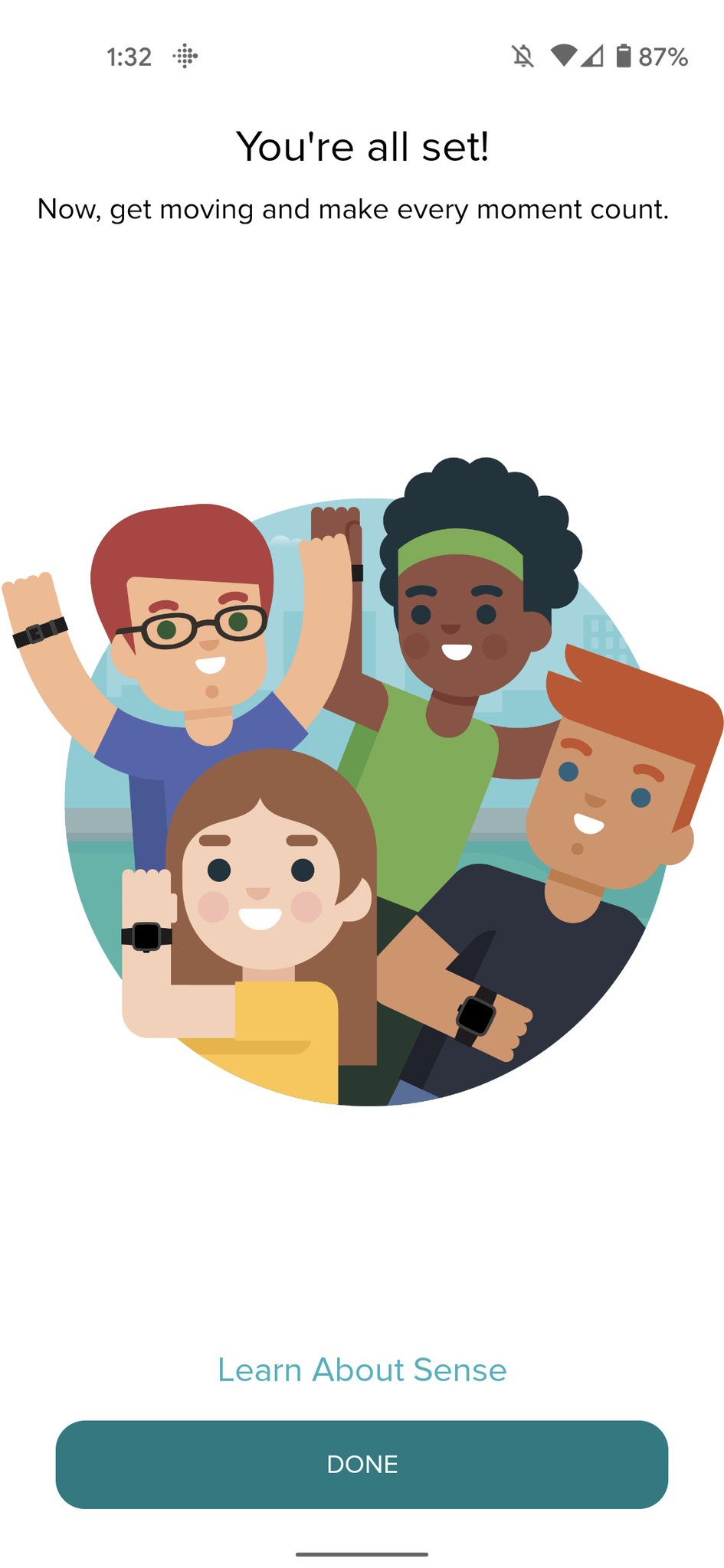
  23. After a few pages, tap Done.
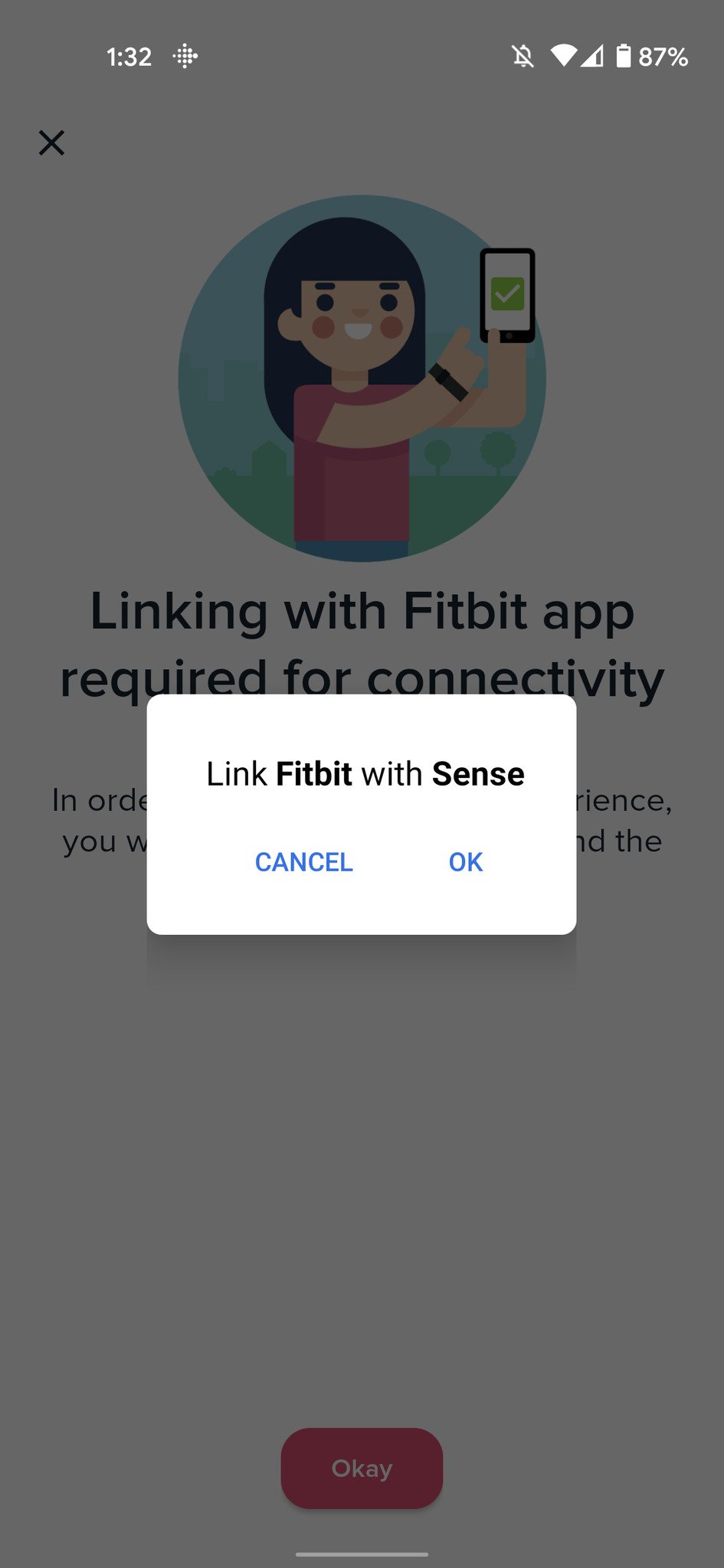
  24. Tap OK to link your Fitbit with the app.
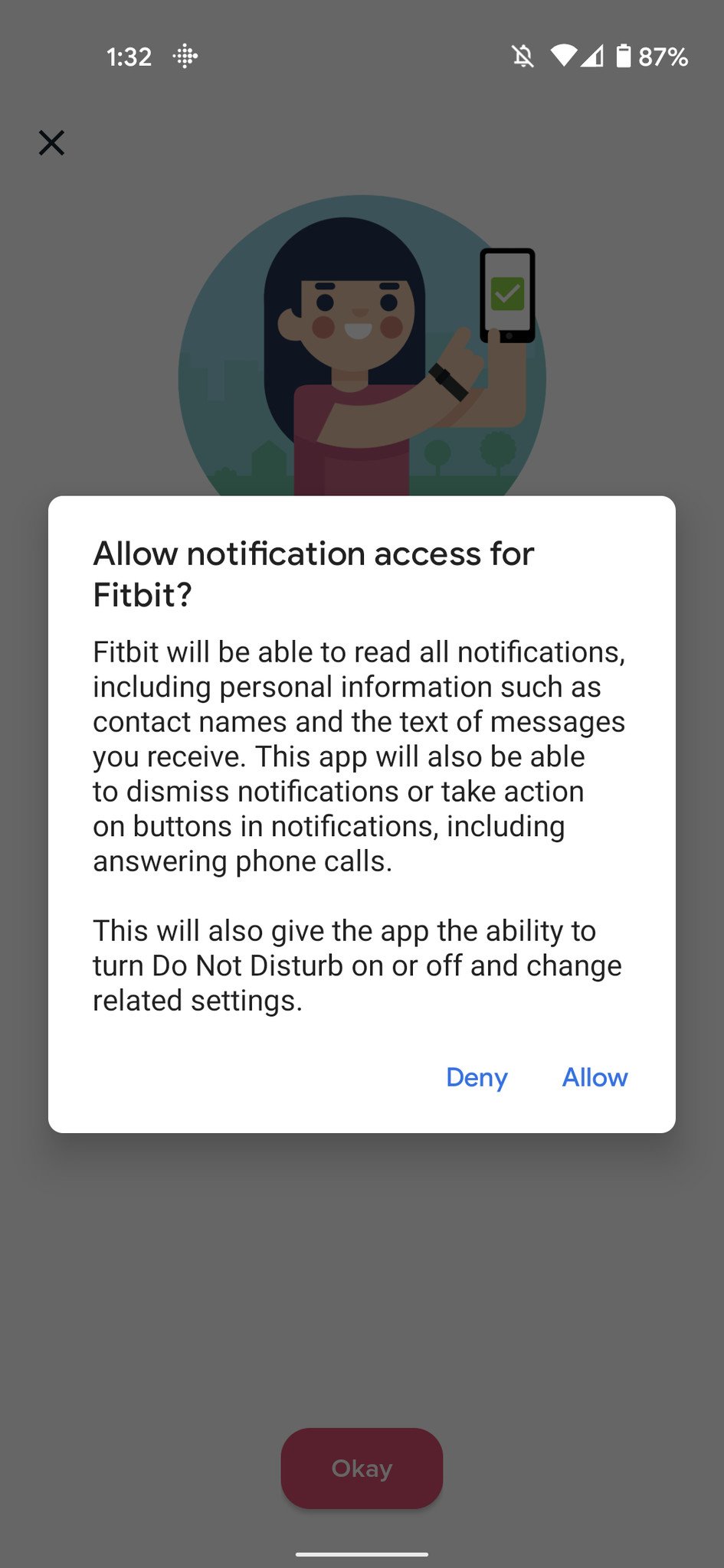
  25. Tap Allow.

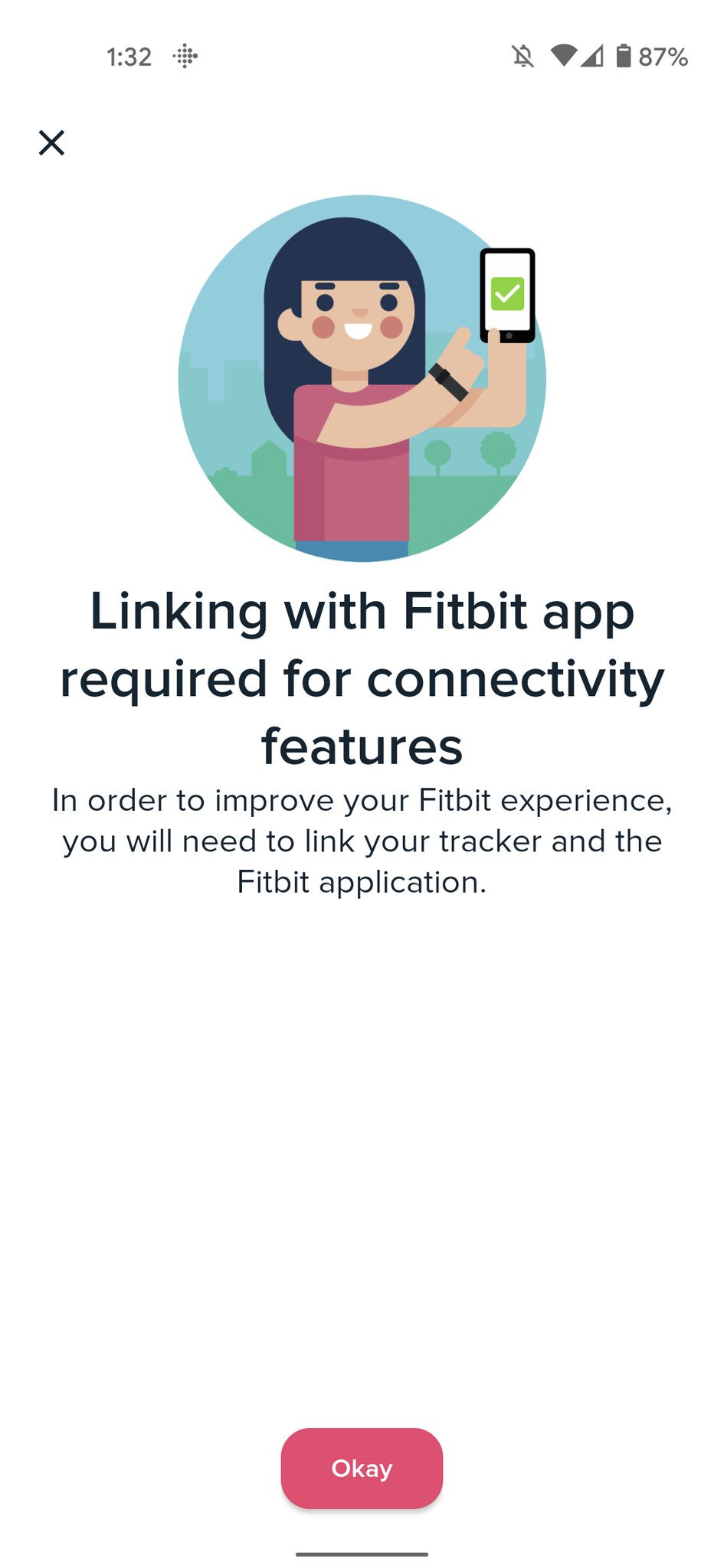
  26. Tap Okay.
  27. Tap the back arrow in the upper-left corner.
  28. Your Fitbit is now all set up and ready to go!

How to set up a Fitbit with an existing account

If you have previously used Fitbit and have an existing account you can just log in to, here's what you'll be doing.

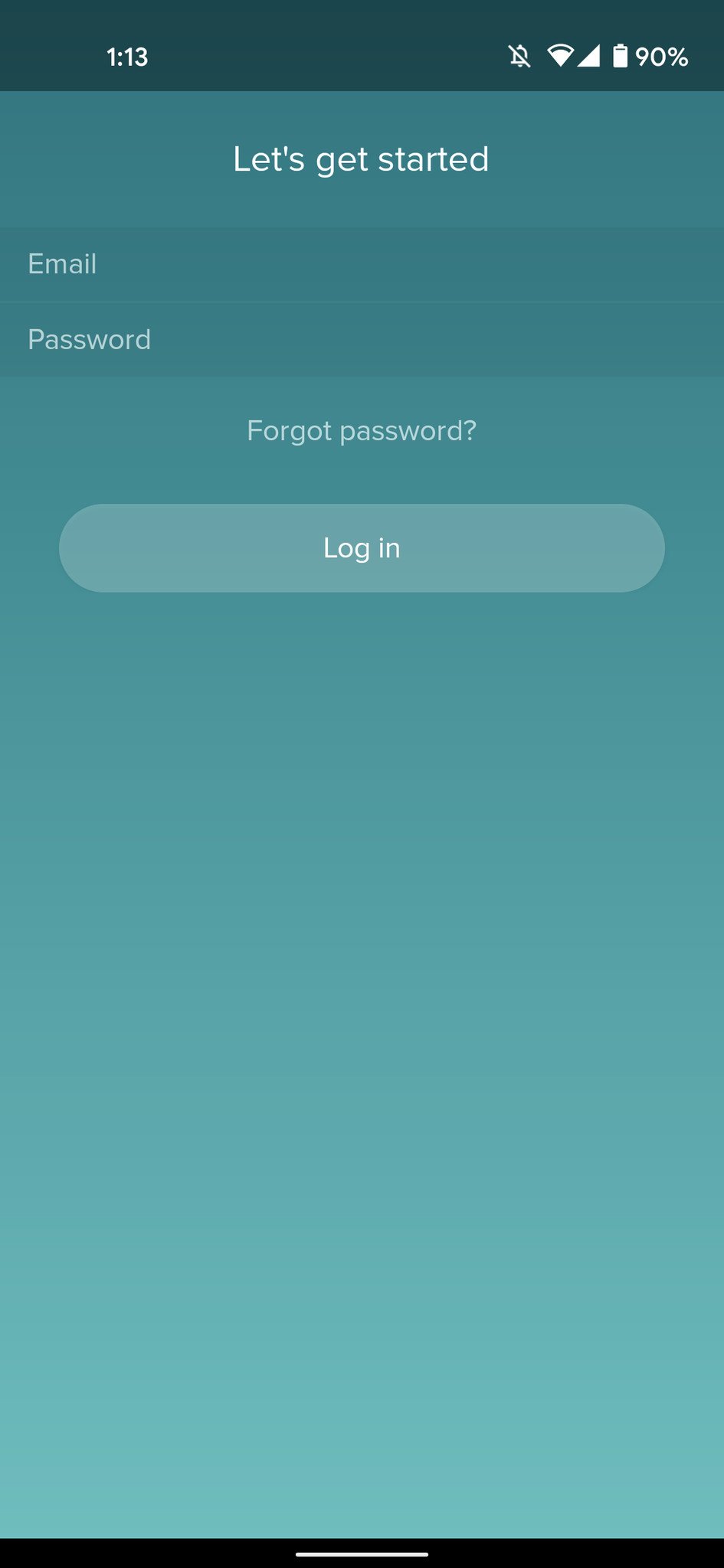
  1. Open the Fitbit app on your phone.
  2. Tap Log in.
  3. Enter your email and password.
  4. Tap Log in.
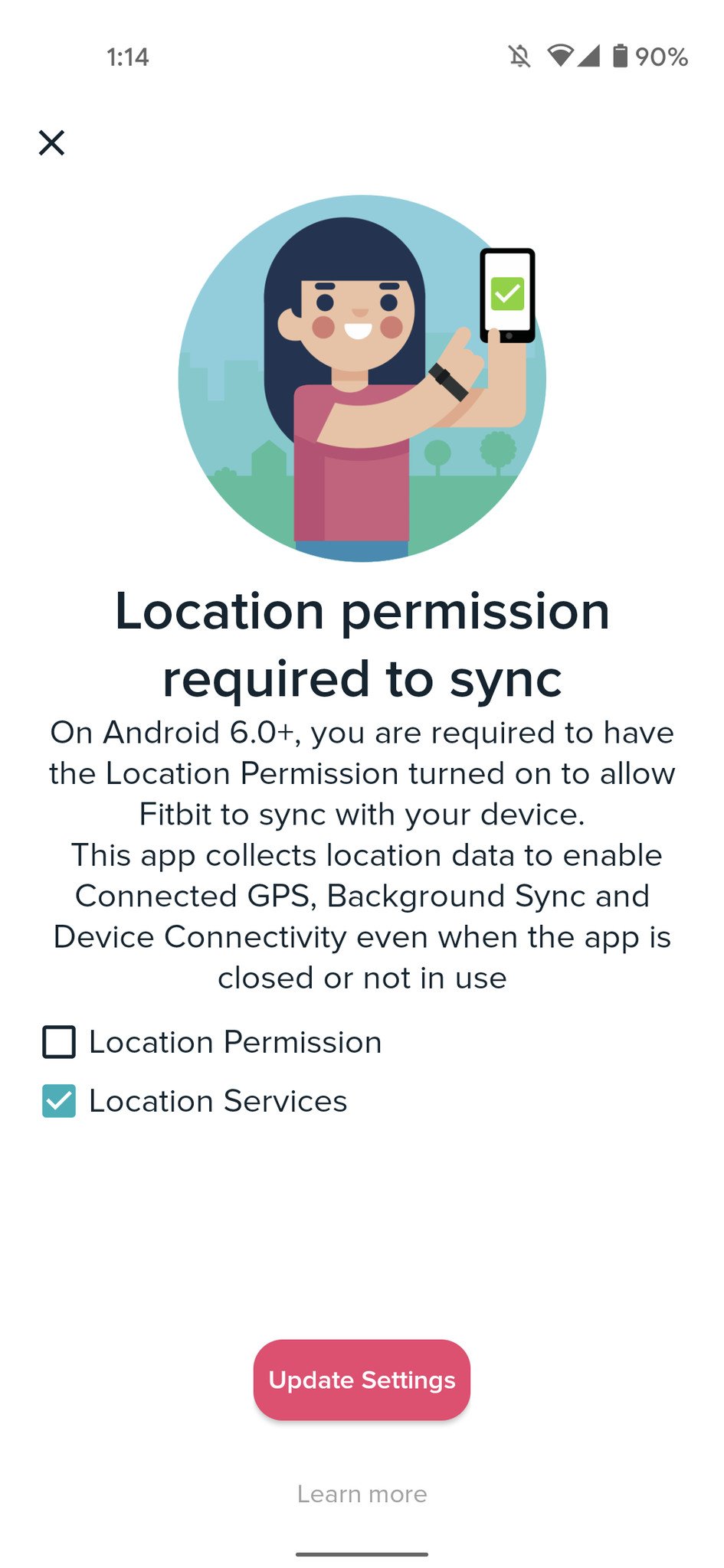
  5. Tap Location Permission.
  6. Tap Update Settings.

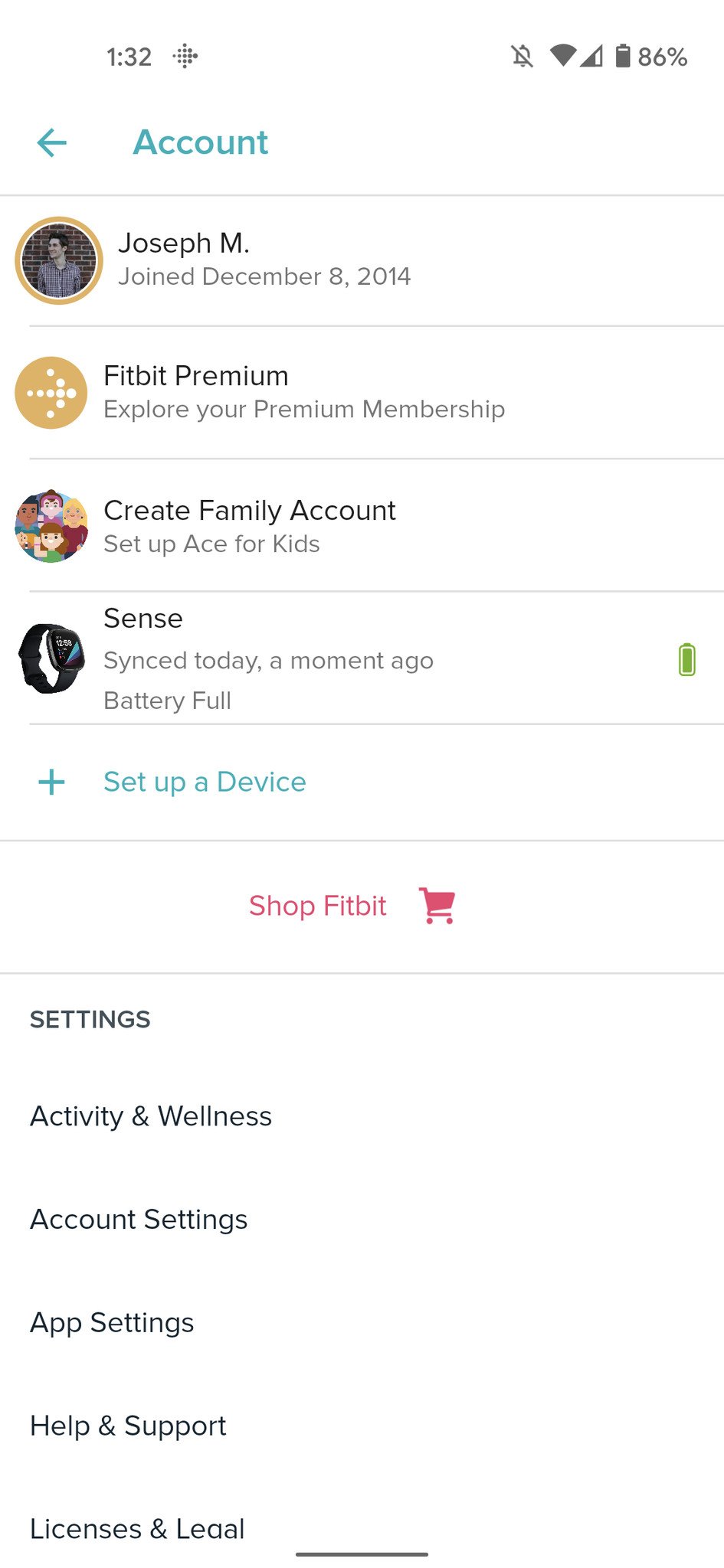
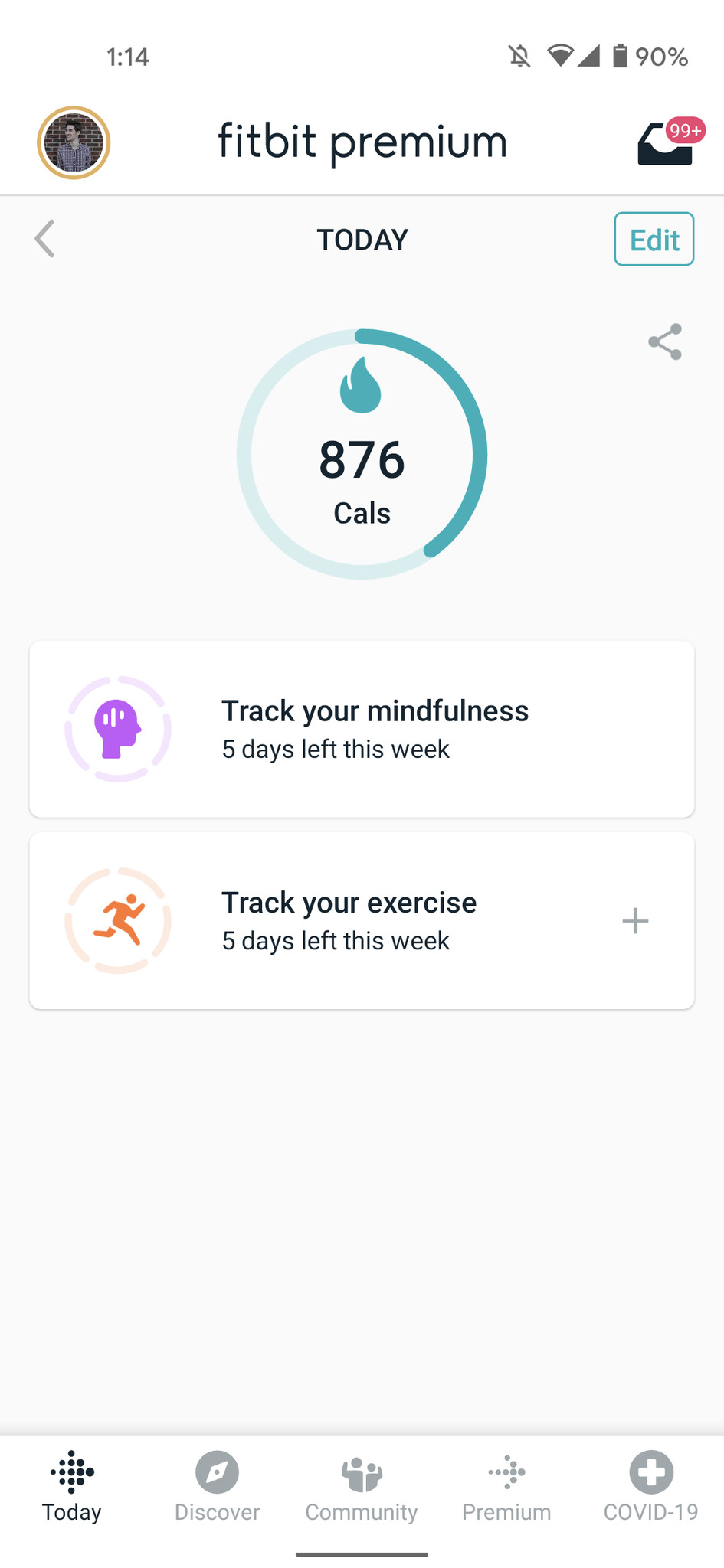
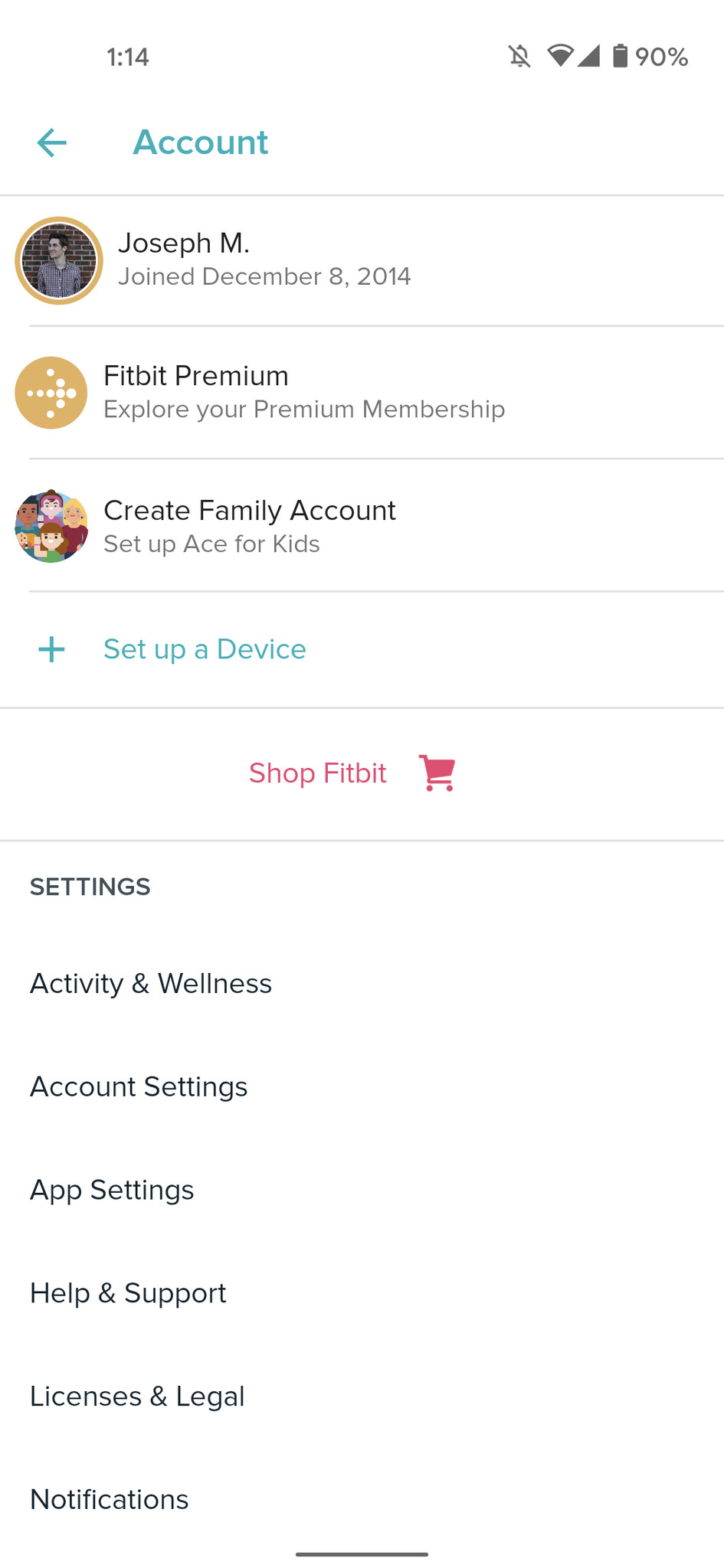
  7. Tap your profile icon in the upper-left corner.
  8. Tap Set up a Device.
  9. Select the Fitbit you're setting up.

  10. Tap Set Up.
  11. Scroll down and tap I Accept.
  12. Tap Next.

  13. Enter the four-digit code from your Fitbit.
  14. Tap Next.
  15. Select your Wi-Fi network.

  16. Enter your Wi-Fi password.
  17. Tap OK.
  18. Tap Next.
  19. Tap Start Update.

  20. Wait for the update to finish.
  21. Tap Continue.
  22. Tap Next on all of the pages showing you how to use your Fitbit.

  23. After a few pages, tap Done.
  24. Tap OK to link your Fitbit with the app.
  25. Tap Allow.

  26. Tap Okay.
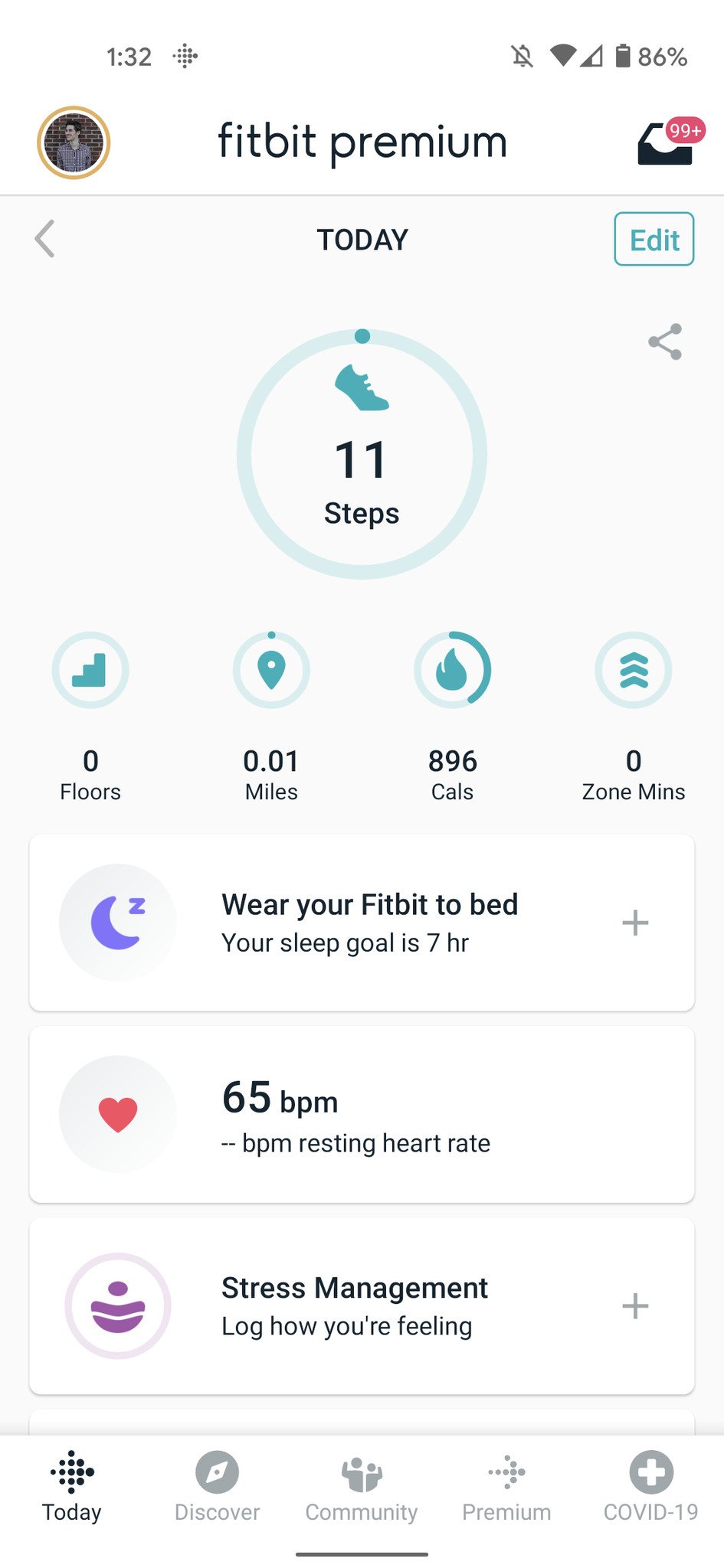
  27. Tap the back arrow in the upper-left corner.
  28. Your Fitbit is now all set up and ready to go!

Enjoy your new Fitbit!

With all of that done, you've officially set up your Fitbit — congrats! If you want to get the absolute most out of it, be sure to check out how to get started and stick with a Fitbit by customizing your goals, getting reminders to move every hour, and more.

Ultimate Fitbit

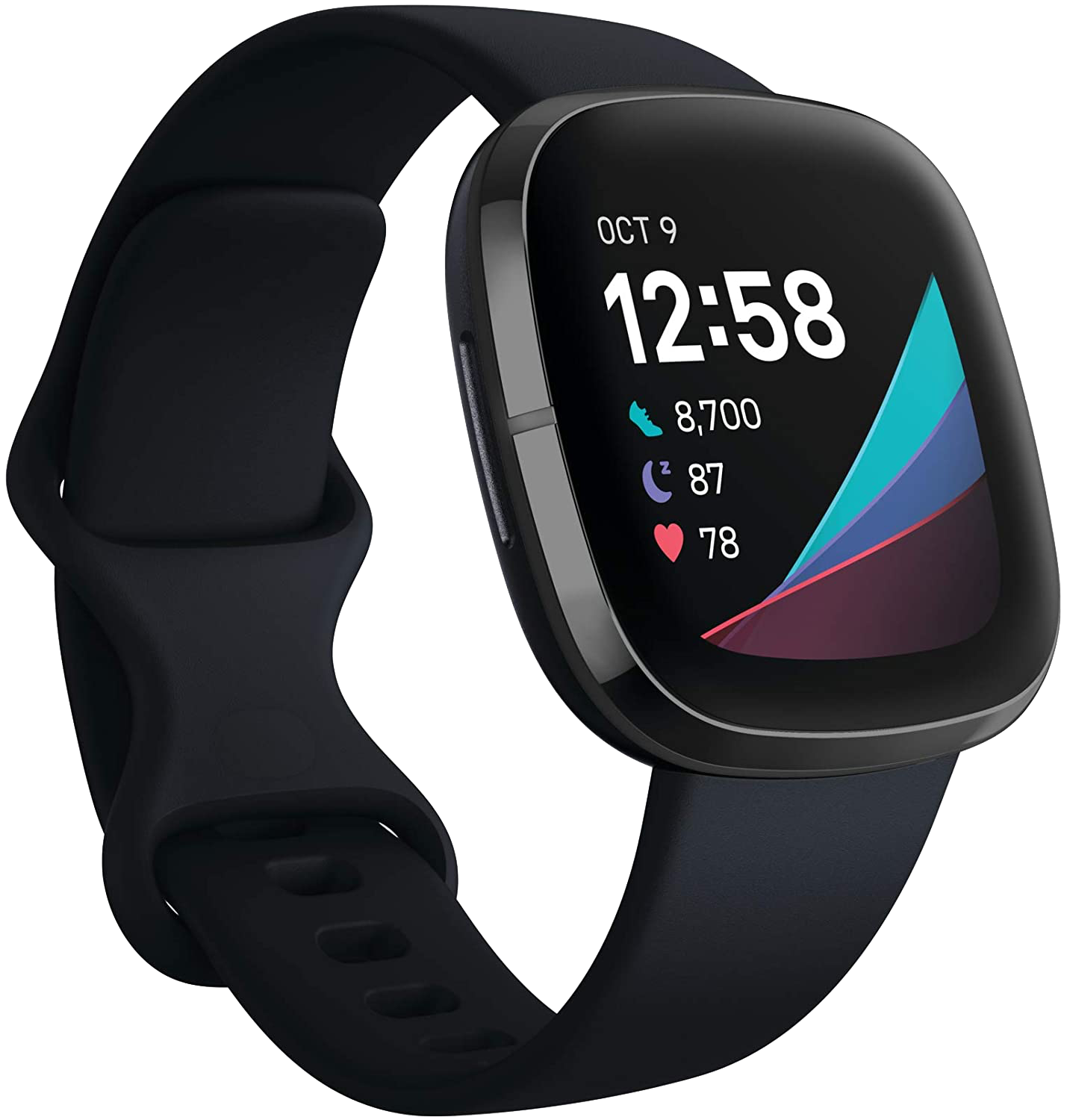
Fitbit Sense

$279 at Amazon $280 at Best Buy $280 at B&H

The most capable Fitbit yet

Simply put, Fitbit Sense is the most powerful and functional Fitbit we've ever seen. In addition to the usual health/sleep tracking, the Sense also offers stress management tools, an ECG reader, and an on-device skin temperature sensor. If you're in the market for the ultimate fitness smartwatch, this is it.


from Android Central - Android Forums, News, Reviews, Help and Android Wallpapers https://ift.tt/2QvDdfZ
via IFTTT